Schedule reports to be sent automatically to yourself or other users on a daily, weekly, or monthly basis, depending on the report.
This ensures that you and your team always have the latest insights delivered straight to your inbox.
Available Reports
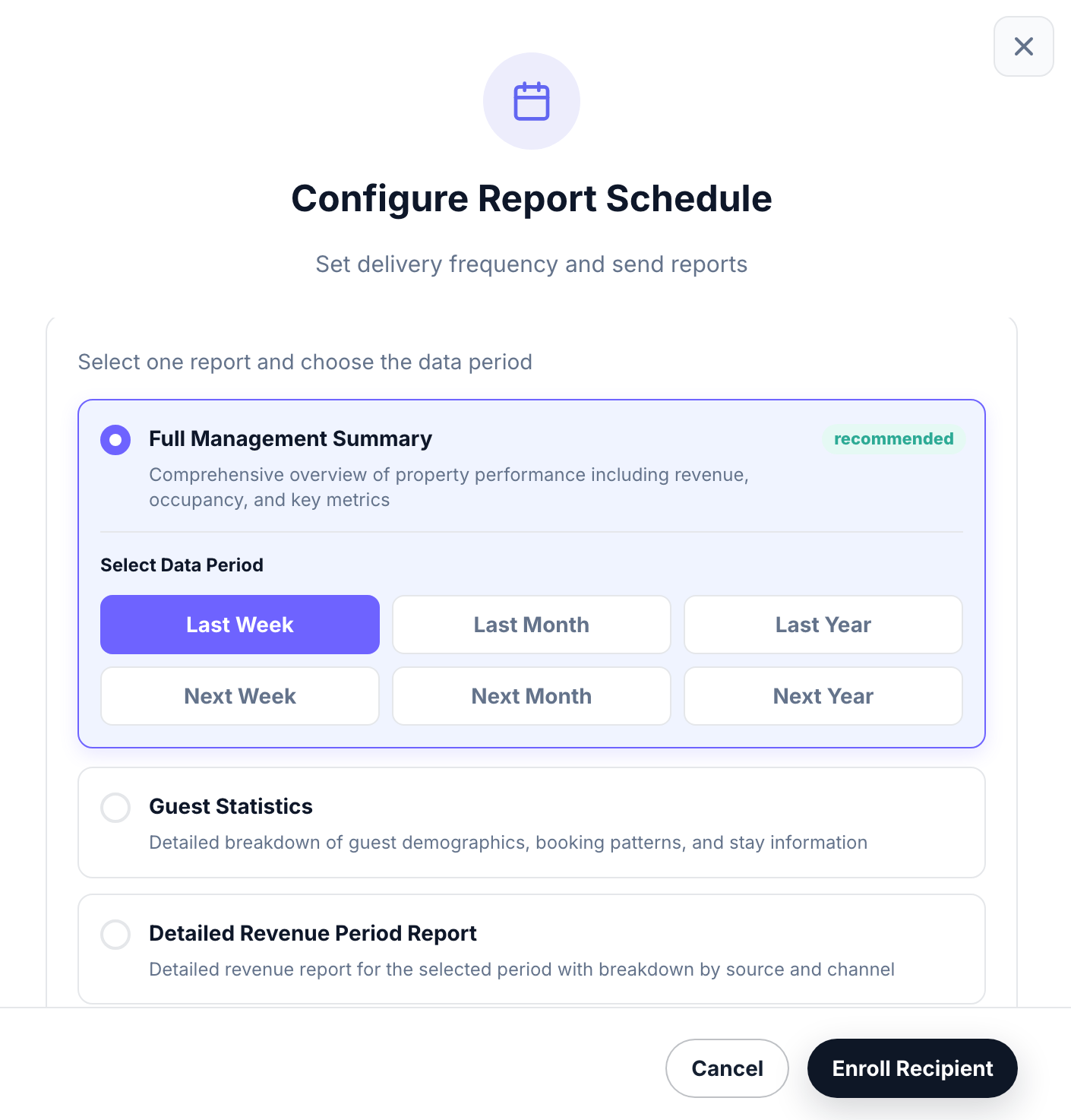
Full Management Summary - A complete overview of your property’s performance, including revenue, occupancy, and other key operational metrics.
Guest Statistics - A detailed breakdown of guest demographics, booking patterns, and stay information.
Detailed Revenue Period Report - A comprehensive revenue report for a selected period, including a breakdown by booking source and channel.
How to Set Up a Scheduled Report
Please note: the option to set this up is only available to Manager users and up.
Navigate to the Reports module in RoomRaccoon and open the Schedule tab.
Click Unlock Access.
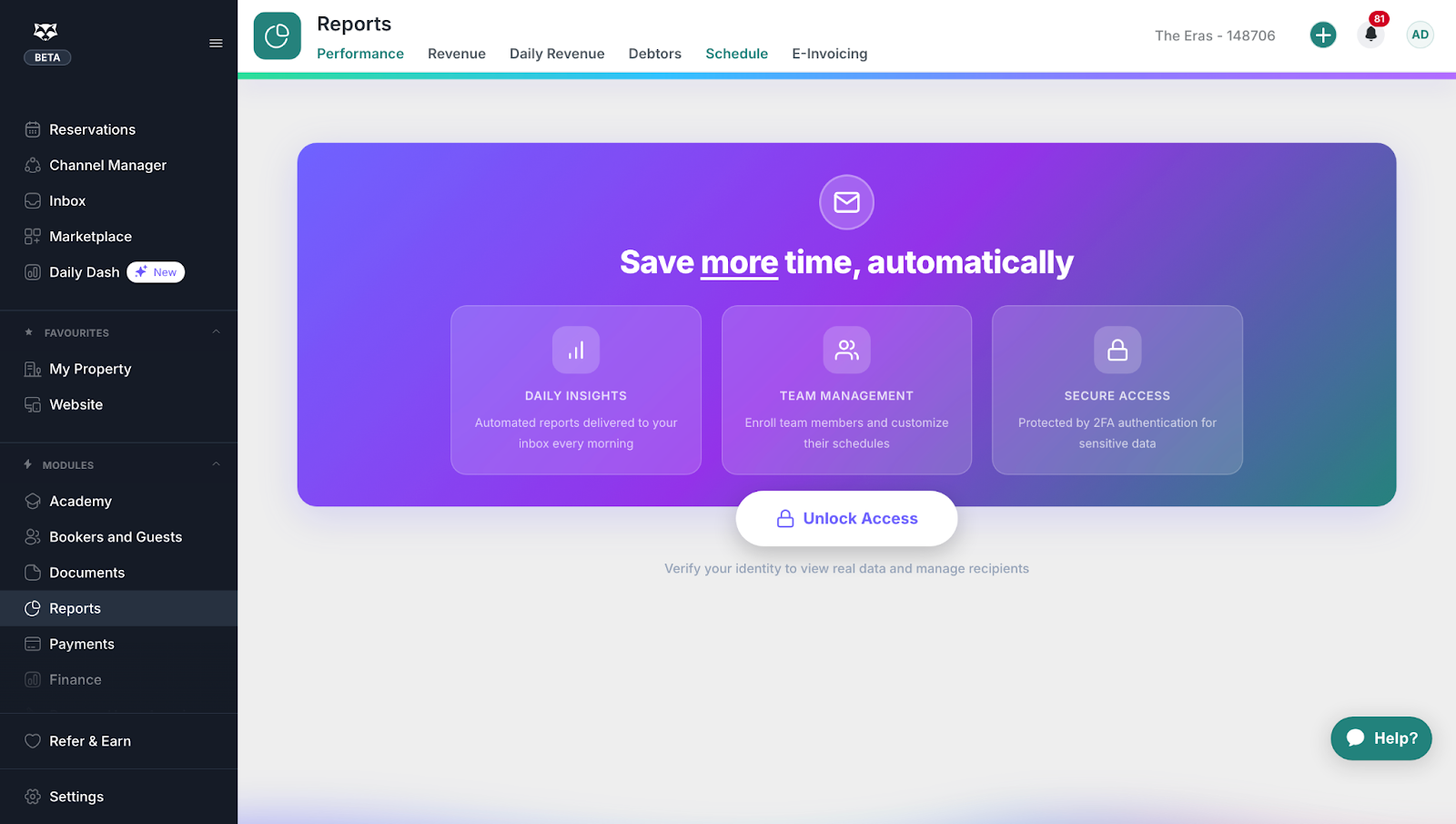
Verify your access using the code sent to your email address.
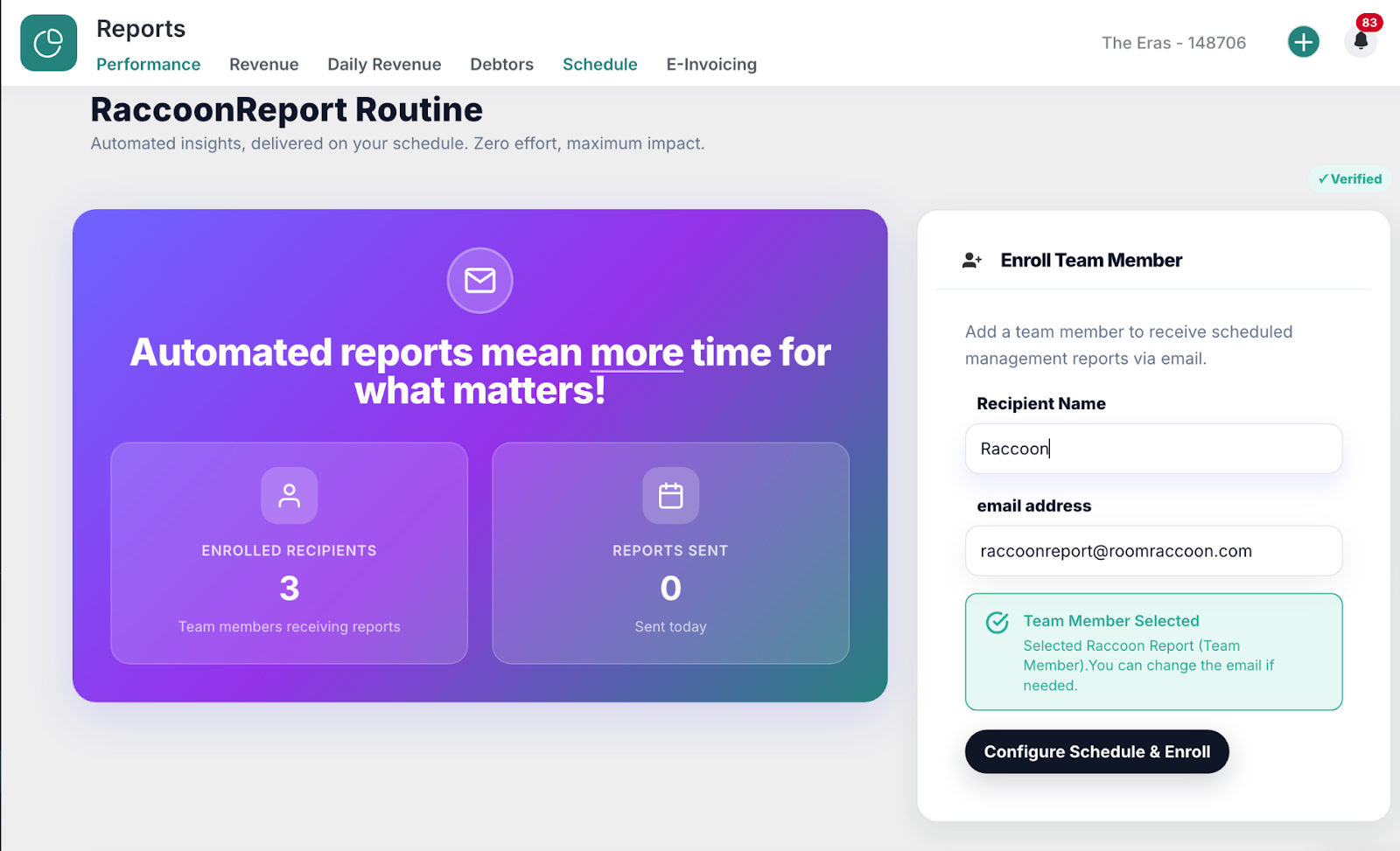
Once verified, you will be redirected to the RaccoonReport Routine Dashboard, where you can:
View how many recipients are enrolled
See how many reports have been sent
Edit existing recipients and their report preferences
Temporarily suspend reports if a recipient is on leave or no longer needs to receive them
Enrolling a New Recipient
Enter the recipient’s name.
If the user already has a RoomRaccoon login, their name and email address will automatically be matched.
Click Configure Schedule and then Enroll.
Configure the Report
You will complete three steps:
Verify Recipient Details: Confirm who will receive the report.
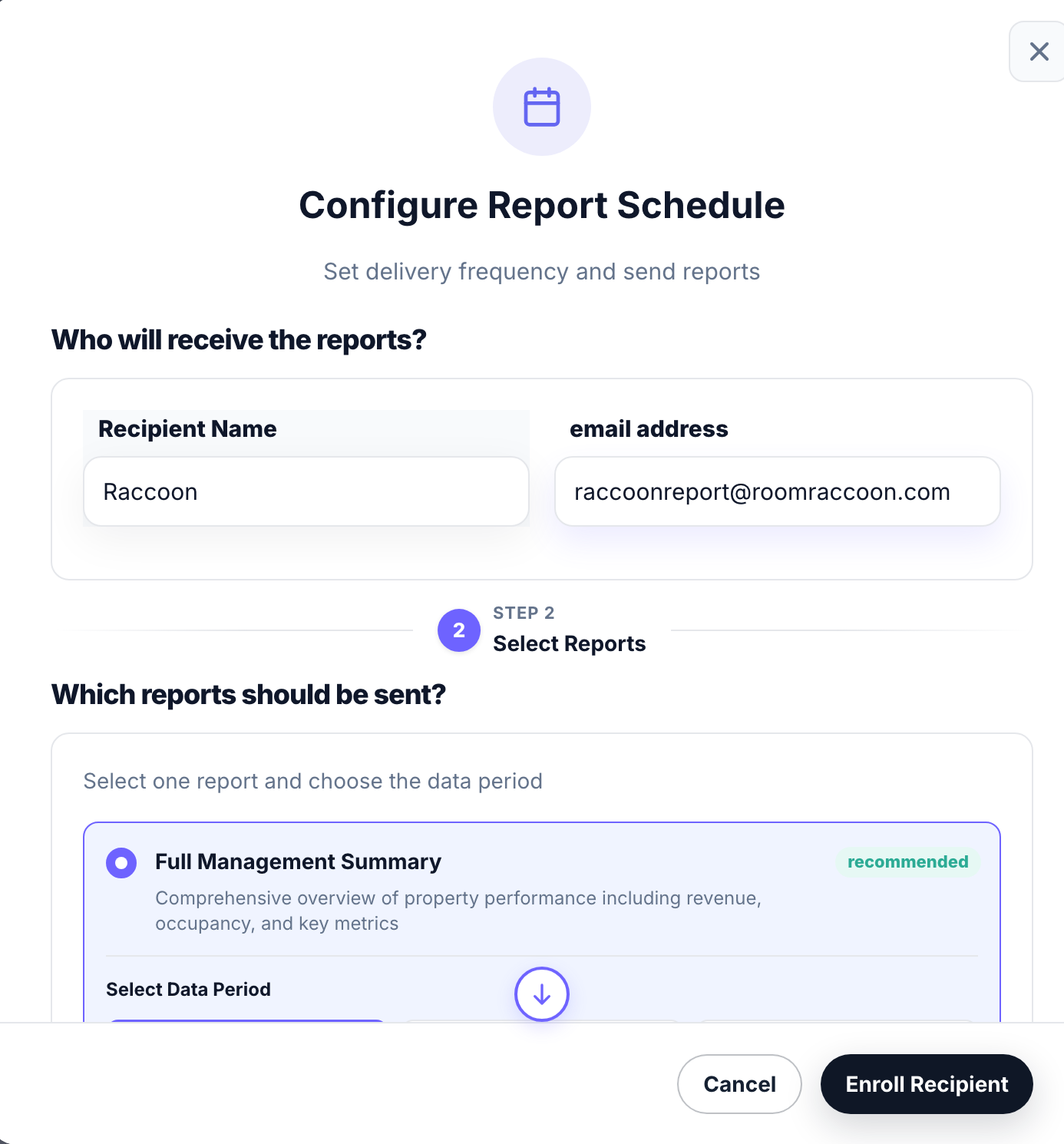
Select the Report: Choose which report the recipient should receive and select the data period (this varies depending on the report).
Select the Schedule: Choose the frequency (daily, weekly, or monthly) and the preferred delivery time.
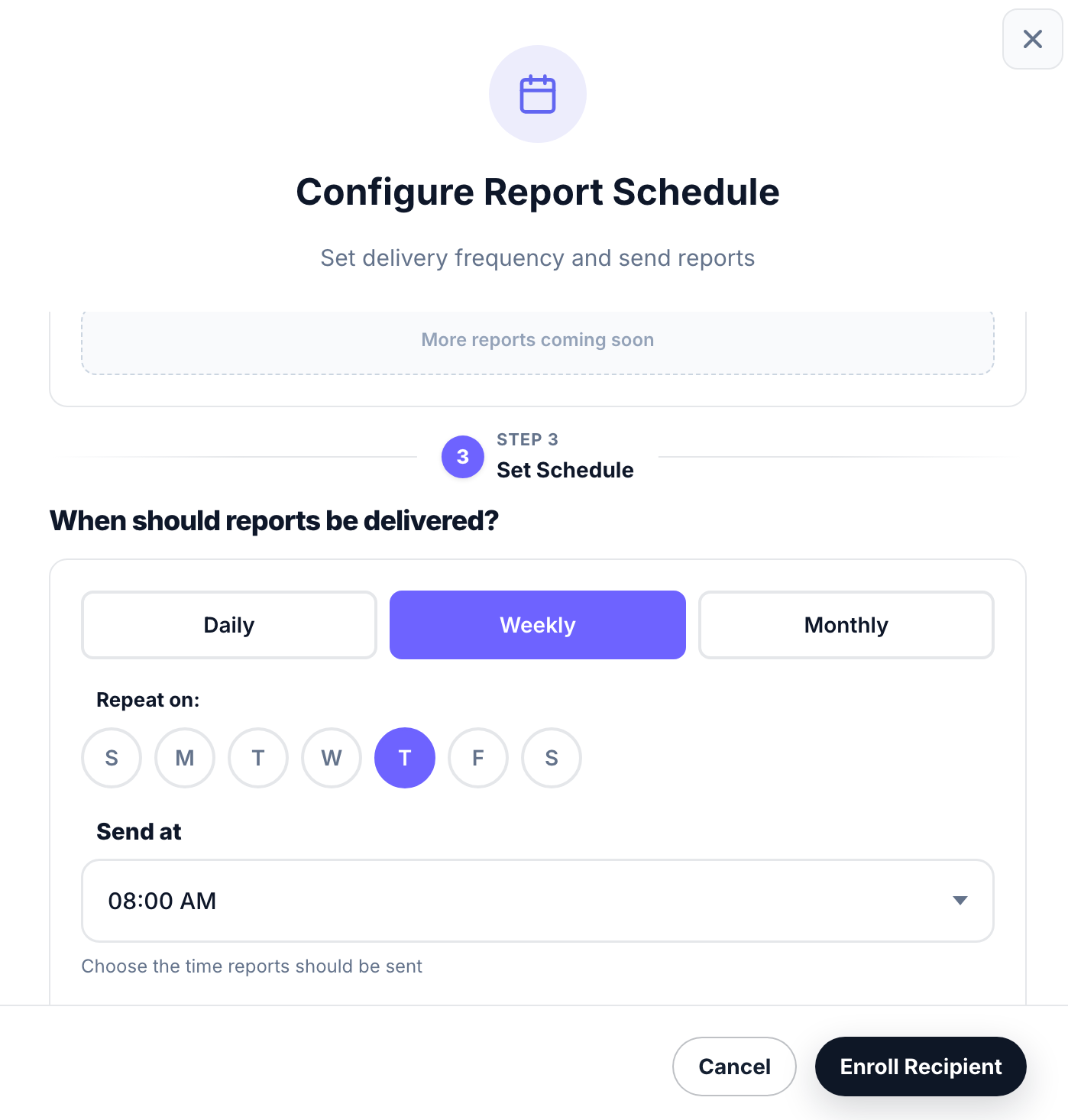
Finally, click Enroll Recipient.
Good to know
Each report needs to be configured separately, even if it is for the same recipient.
Reports are delivered via email according to the configured schedule.
You can edit existing recipients and update their report preferences at any time. You also have the option to temporarily suspend reports if a user is on leave or no longer needs to receive them:

Was this article helpful?
That’s Great!
Thank you for your feedback
Sorry! We couldn't be helpful
Thank you for your feedback
Feedback sent
We appreciate your effort and will try to fix the article