RoomRaccoon allows you to accept PayPal as an online payment method, giving guests the option to pay using their PayPal balance, linked bank account, or cards stored in PayPal.
PayPal works as an external payment method. RoomRaccoon provides the connection, while PayPal handles the payment processing, payouts, refunds, and chargebacks.
Requirements to Use PayPal
To enable PayPal in RoomRaccoon, you must have:
An active PayPal Business account that can receive payments
RaccoonPay enabled in your RoomRaccoon account
How PayPal Works in RoomRaccoon
When a guest pays with PayPal:
The guest selects PayPal during the online payment flow.
A PayPal pop-up opens, where the guest logs in and confirms payment.
PayPal authorises and processes the transaction.
Funds are paid directly into your PayPal account.
RoomRaccoon does not handle PayPal payouts or disputes. All settlements, refunds, and chargebacks are managed inside your PayPal account.
How to Connect Your PayPal Account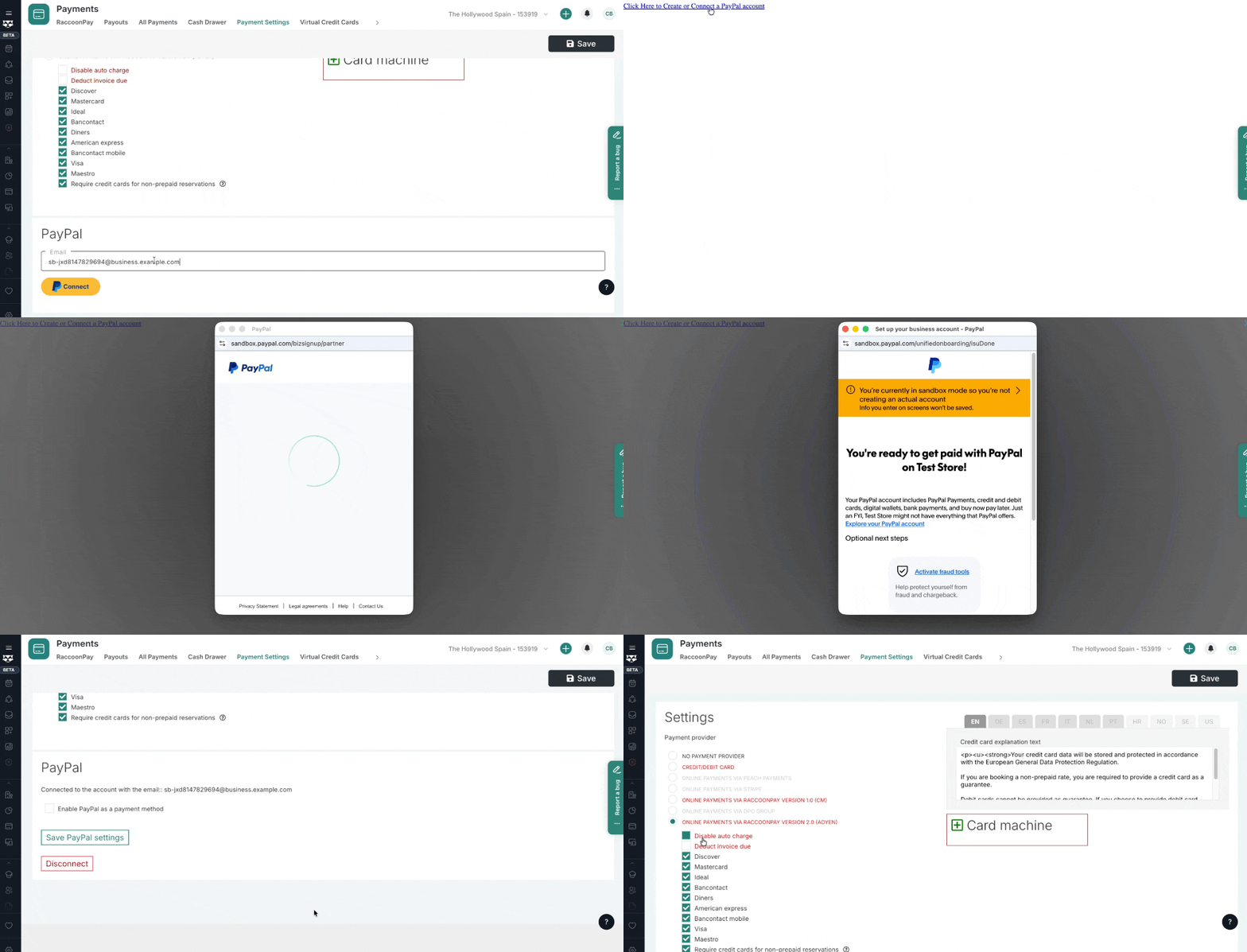
Contact our Support Team to enable PayPal in your account so you can connect. Once confirmed, proceed to the next steps.
Go to Payments → Payment Settings in RoomRaccoon.
Scroll down to the PayPal section.
Enter the email address linked to your PayPal account.
Click the yellow Connect button.
A PayPal pop-up window will open.
Log in to PayPal and approve the connection.
Click Return to RoomRaccoon.
Back in RoomRaccoon, scroll to the PayPal section again.
Click Enable PayPal as a payment method.
Click the green "Save PayPal settings" below.
If the “Activate checkout” option does not appear immediately, reload the page and try again.
Do not use the black Save button at the top of the page.
Handling Payments
What Happens After a Successful Payment
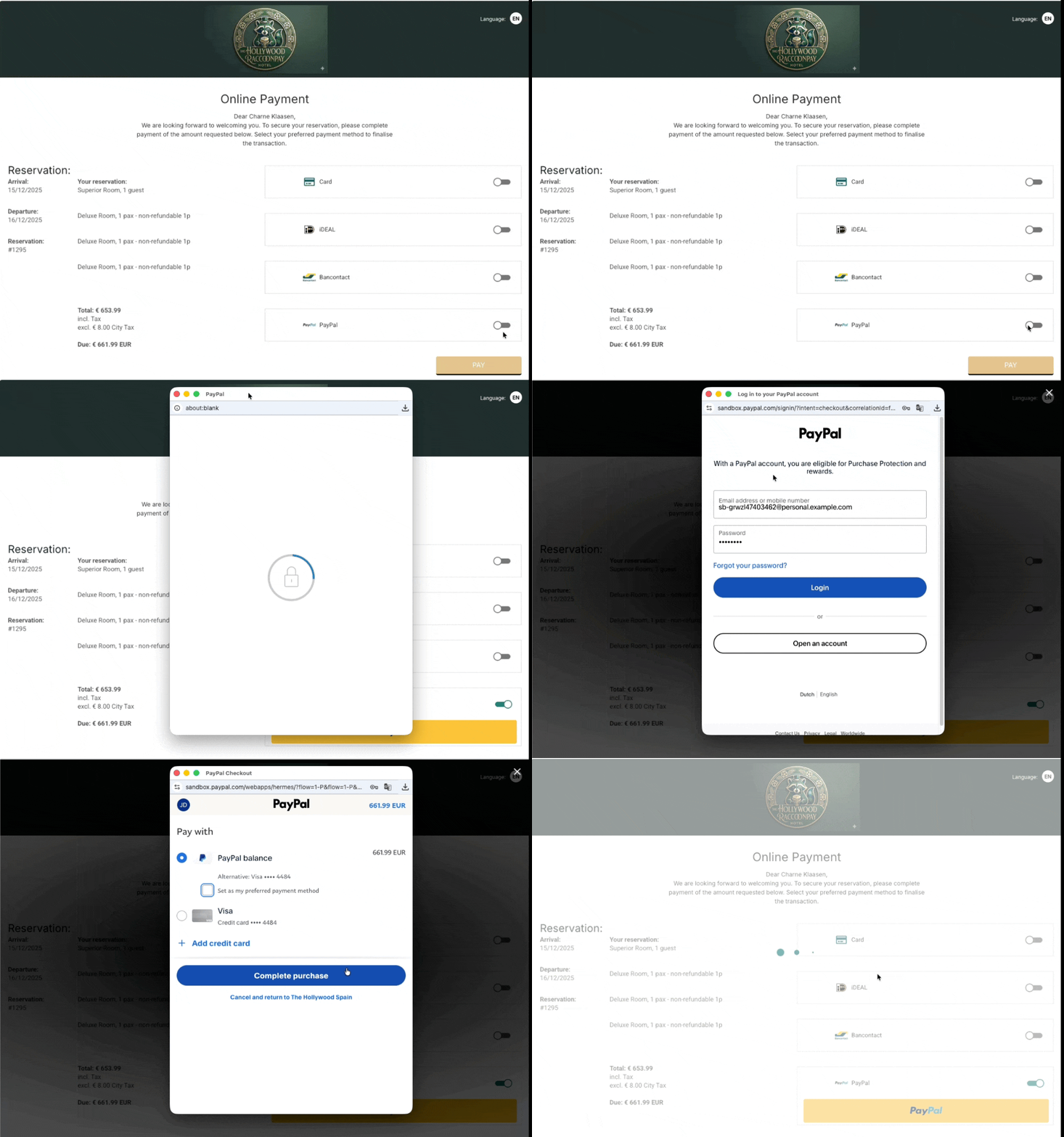
The payment appears automatically in:
The reservation
The All Payments overview
The RaccoonPay dashboard
The payment method is shown as PayPal
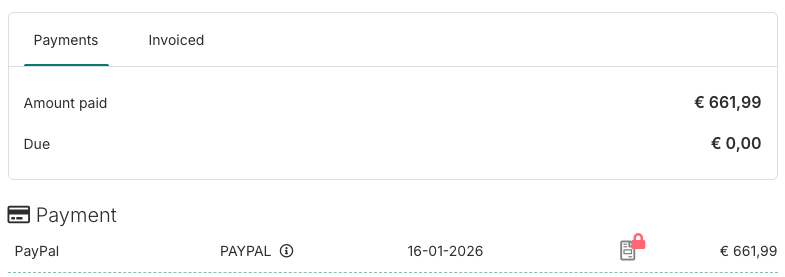
PayPal transactions are included in:
Total Payments
Analytics
PayPal payments are not included in the “Next Payout” card
Because PayPal manages its own payouts, you’ll see a question mark icon under payout status. Hovering over it will remind you to check payout details directly in your PayPal account.

Failed or Cancelled Payments
If the guest closes the PayPal pop-up before confirming, the payment is marked as cancelled
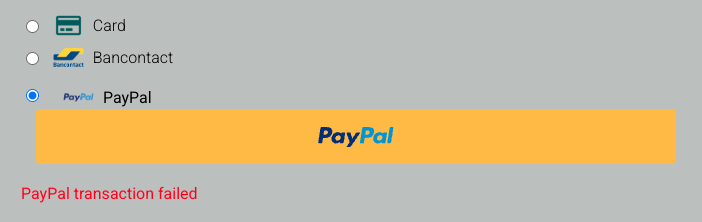
If PayPal declines the payment, it is marked as failed
In both cases, an error message is shown and no payment is recorded
Refunds and Chargebacks
All PayPal-related actions are handled in your PayPal account, including:
Refunds
Chargebacks & Disputes
Payout timing and availability
RoomRaccoon cannot manage these actions on your behalf.
Good to Know
PayPal payments are processed entirely within PayPal
RoomRaccoon does not control PayPal payouts or disputes
Always check your PayPal dashboard for settlement and refund details
If you need help enabling PayPal or don’t see it available in your Payment Settings, contact our Support Team via the in-app chat.
Was this article helpful?
That’s Great!
Thank you for your feedback
Sorry! We couldn't be helpful
Thank you for your feedback
Feedback sent
We appreciate your effort and will try to fix the article