RaccoonSite is RoomRaccoon’s built-in website builder. It helps you create a simple, professional hotel website that connects directly to your booking engine.
Your website is automatically pre-filled with key information from your account, such as:
Logo and colours
Room categories and images
Room descriptions
This allows you to launch a website quickly, without needing technical skills.
What you can do with RaccoonSite
With RaccoonSite, you can:
Create a website connected to your booking engine
Launch pages quickly using templates
Edit content with simple building blocks
Manage multiple languages
Control what is visible before publishing
Prepare your site for a custom domain
Activating RaccoonSite
RaccoonSite packages
RaccoonSite is available in two package options:
RaccoonSite: Includes the self-service website builder. Requires 1 upgrade slot.
RaccoonSite Plus: Includes additional services such as website build support, email hosting, and domain registration. Requires 2 upgrade slots.
However, you can try out RaccoonSite first, without signing up. Only when you would like to publish your site you will have to upgrade.
Where to find RaccoonSite
Go to the Website Module in the left-hand menu. Here you will find:
Website settings for general website and booking engine configuration
Booking engine for reservation rules
RaccoonSite to build and manage your website
Important: Your website content and booking engine settings are managed separately, except for the elements in the website settings tab.
Try it out
You can explore RaccoonSite before activating it:
Go to the Website module
Open the RaccoonSite tab
Start building your website
No upgrade slot is required until you publish your site.
Best practice
Before building your website, make sure your room categories include images and descriptions.
These are automatically pulled into the website builder and improve the final result.
Publishing your website
To publish your website, 1 upgrade slot is required
If you prefer a fully managed setup, choose RaccoonSite Plus. Our team will build and register the website for you.
Getting started
Set up your logo and branding
In the website settings tab, make sure you have set up your logo and branding colours. These will reflect on your website as well as your booking engine.
Choose and preview a template
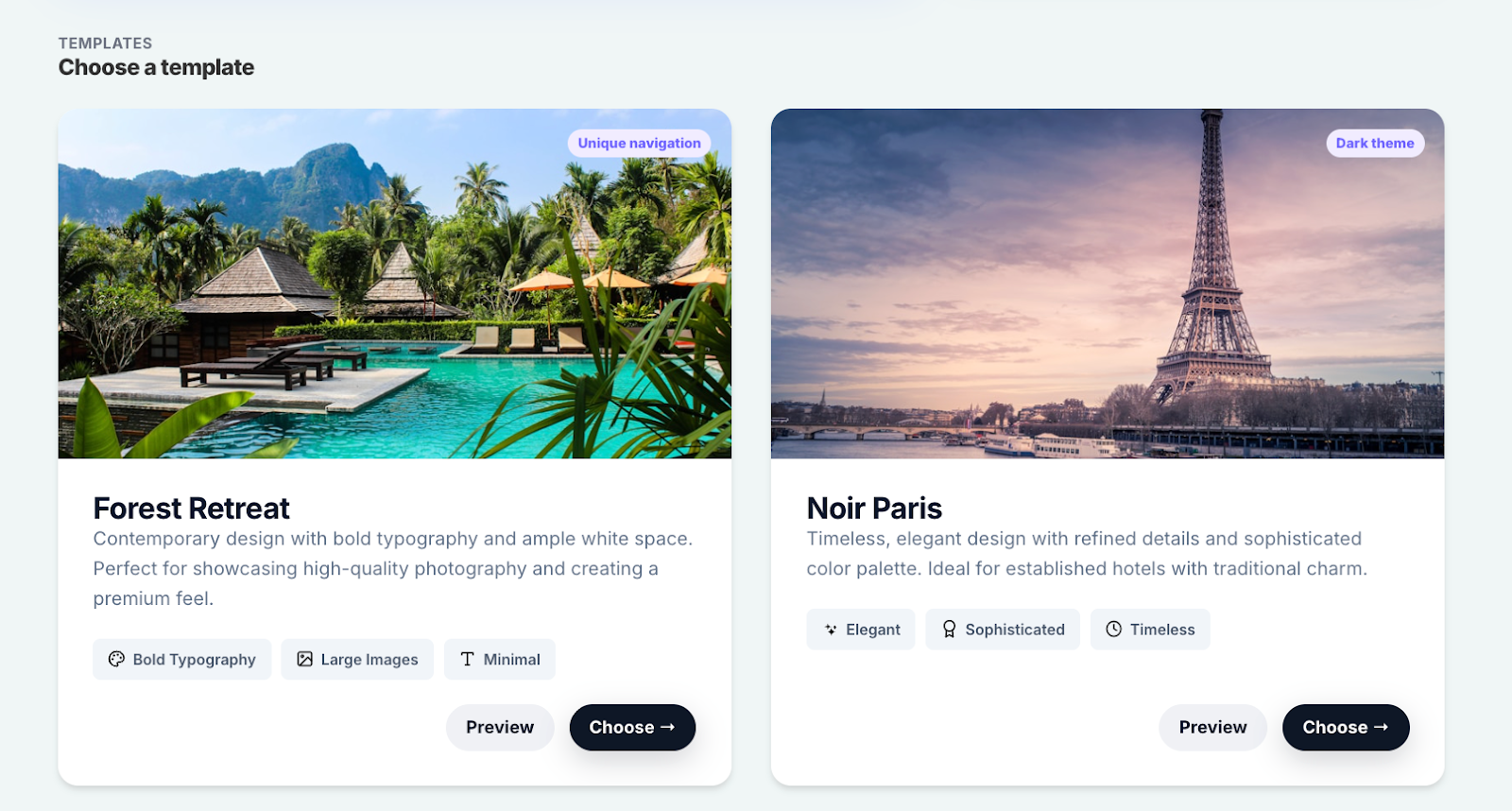
Templates control the look and layout of your website. To preview templates:
Open RaccoonSite
Click Preview
Switch between templates;
Forest Retreat
Noir Paris
Mountain Lodge
Villa
Your logo and colours are applied automatically.
Create your website pages
Default website pages
Once you select a template, a set of standard pages is automatically created to help you get started:
Home page: Your main landing page where guests first arrive
Rooms: An overview of your room categories
Dining: Ideal for showcasing your restaurant or catering options
Contact: Displays your property’s contact details for guests and adds a contact form. You will receive the form as an email to the main account email address.
Customising your website
You can edit all standard pages to match your brand and content.
Use the preview option to review your website before publishing.
Adding new pages
To create additional pages:
Click Add page in the top right corner
Choose your page type
Start editing your content
Manage pages
Change page order
The order of pages controls your website navigation
Move pages up or down to update the menu
Publish or unpublish pages
Published pages are visible on your website
Unpublished pages are hidden
This helps you prepare content before going live.
Edit page content with blocks
Each page is built using blocks. These are the sections visitors see on your website.
The order of blocks in the editor matches the order on your website.
A full list of content blocks:
Hero Banner: Create a stunning first impression with a large image and headline that highlights your property and invites guests to explore.
Text Block: Add custom text to share your story, welcome guests, or provide useful information about your property.
Link: Guide visitors to another page, section, or external website with a simple clickable link.
Video Hero: Bring your property to life with a full-width video that captures the atmosphere and experience of staying with you.
Photo Gallery: Showcase beautiful photos of your property, rooms, and surroundings in an elegant gallery.
Awards Showcase: Display logos of awards, certifications, or partners to build trust and highlight your achievements.
Events Showcase: Promote upcoming events, special occasions, or experiences happening at your property.
Booking Widget: Allow guests to check availability and book their stay directly from your website in just a few clicks.
Amenities Grid: Highlight your property’s amenities—such as Wi-Fi, parking, breakfast, or spa facilities—in a clear and visual layout.
Reviews: Build trust by showcasing guest reviews and testimonials from past stays.
Room Card: Display a quick overview of a room with key details, perfect for listing multiple room types in a compact way.
Room Showcase: Present your rooms in more detail with images, descriptions, and features to help guests choose their ideal stay.
Content Showcase: Feature key highlights such as services, experiences, or unique aspects of your property.
Image Slider: Display multiple images in a smooth slideshow to showcase your property from different angles.
Instagram Link: Connect your website to your Instagram profile and inspire guests with your latest photos.
Facebook Link: Link to your Facebook page so guests can explore updates, reviews, and community engagement.
Team Showcase: Introduce the people behind your property and create a more personal connection with your guests.
Location Map: Show guests exactly where you’re located and help them plan their visit with an interactive map.
Contact Form: Make it easy for guests to send enquiries or get in touch directly through your website.
Hero banner
Main title and subtitle
Image or video
Call-to-action button, usually linking to your booking engine
Room showcase
Displays your room categories; the photos pull straight from My Property
Each room includes a Book now button linked to your booking engine
You can configure the room showcase to:
Display all room categories or selected ones
Include custom titles and descriptions
Each room links directly to its booking page.
Image gallery
Upload your images, and show visitors multiple images to scroll through
Reviews
Upload guest reviews and display them here
Contact form
Allows guests to send enquiries directly to your property
Add, edit, or remove blocks
Add a block
Open a page
Select a block type
Add your content
Click Save
Preview the page
Edit a block
Click the block
Update text, images, or settings
Save and preview
Move a block
Use the arrows to move blocks up or down
This changes the order on the page
Delete a block
Select the block
Click Delete
Save changes
Manage languages
Enable languages
Languages available in your website depend on your Website settings. In this tab, you need to enable which languages you would like to offer.
For example:
If English and German are enabled, you can edit content in both languages
Translate content
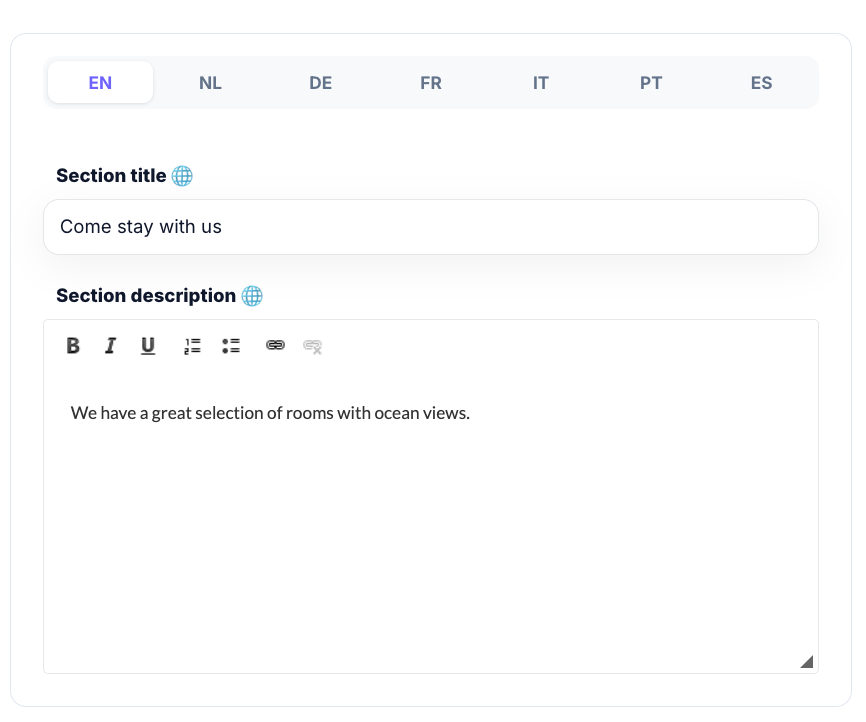
Open the page;
Write your content in the main language first
Use the translation option (globe) to fill content across languages
Always review translations before publishing
Built-in compliance features
RaccoonSite includes:
Cookie consent
Guests can accept or reject cookies
Consent is stored automatically
A cookie policy page is included
Please note: this page is automatically generated and will display in the footer.
Accessibility
Supports keyboard navigation
Helps meet accessibility requirements
Prepare your website to go live
Domain setup
You need your own domain, purchased externally
You will receive a CNAME record
Add this to your domain provider to connect your site
Follow this article for instructions on how to connect your domain to RaccoonSite.
SSL certificate
Your website will be secured with SSL before going live
Optional features
Booking popup
You can add a popup for:
Promotions
Special offers
Discount codes
This can link directly to your booking engine.
Troubleshooting
RaccoonSite is not visible
Check:
RaccoonSite is added to your subscription
You clicked Save
A page is missing
Check:
The page is published
A block is not showing
Try:
Save the block again
Refresh the preview
Switch templates to test
Was this article helpful?
That’s Great!
Thank you for your feedback
Sorry! We couldn't be helpful
Thank you for your feedback
Feedback sent
We appreciate your effort and will try to fix the article