The Chargebacks & Disputes dashboard lets you monitor, manage, and defend payment disputes directly from your RoomRaccoon account. It provides a central place to view all chargebacks and fraud notifications and allows you to submit defence evidence yourself, without relying on external support.
The dashboard is designed to help you act quickly, stay informed, and protect your revenue.
Why This Dashboard Is Important
Chargebacks are time-sensitive and can have a direct impact on your revenue. Missing deadlines or submitting incomplete information can result in lost disputes.
With the Chargebacks & Disputes dashboard, you can:
Respond to disputes immediately
See clear deadlines and remaining response time
Track the status of each dispute in real time
Upload defence documents yourself
Reduce the risk of missed or late responses
Once a defence is submitted, status updates are usually reflected within 24 hours.
Dashboard Overview
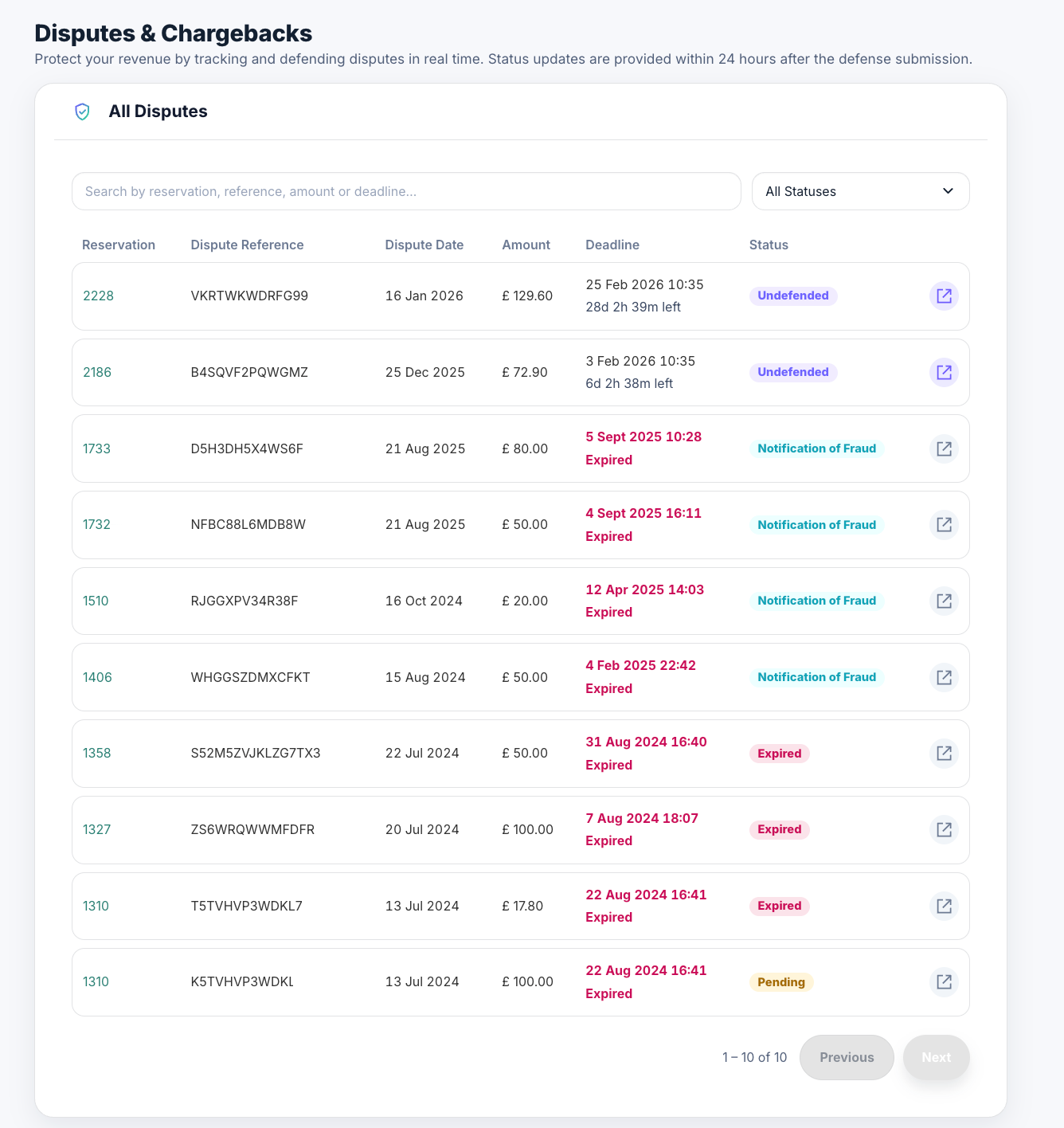
The main dashboard shows a list of all chargebacks and fraud notifications. For each case, you’ll see:
Reservation – The linked reservation reference
Dispute Reference – The unique dispute ID
Dispute Date – When the dispute was created
Amount – The disputed amount
Deadline – The defence deadline or time remaining
Status – The current status, shown as a coloured label
You can:
Search by reservation number, dispute reference, amount, or deadline
Filter disputes by status
Open a dispute by clicking the arrow icon on the right
Dispute Statuses Explained
Each dispute in the dashboard is marked with a coloured status label so you can quickly understand what action is needed.
Actionable statuses
Undefended (purple) - No defence has been submitted yet, but the deadline has not passed. You can still submit a defence.
Pending / Responded (yellow) - A defence has been submitted and is under review. No action is required while waiting for the outcome.
Final statuses
Won (green) - The dispute was resolved in your favour.
Lost (red) - A defence was submitted, but the dispute was not successful.
Expired (red) - The defence deadline passed without a defence being submitted. No further action is possible.
Informational statuses (no action required)
Notification (grey) - This is a fraud notification, not yet a chargeback.
Fraud notifications exist to give you an early warning that a transaction may turn into a chargeback in the coming days. This allows you to:
Review the charge in advance
Check whether a refund is appropriate
Contact the guest to resolve the issue and potentially prevent the chargeback
Start preparing your defence early if needed
Taking action at this stage can help reduce disputes and protect your revenue.
Notification of Fraud – Automatically won (blue)
A fraud notification that has already been resolved automatically in your favour.
No action is required.
Tip: Fraud notifications are an opportunity, not a penalty. Acting early gives you more control and can often prevent a dispute from escalating into a chargeback.
Viewing Dispute Details
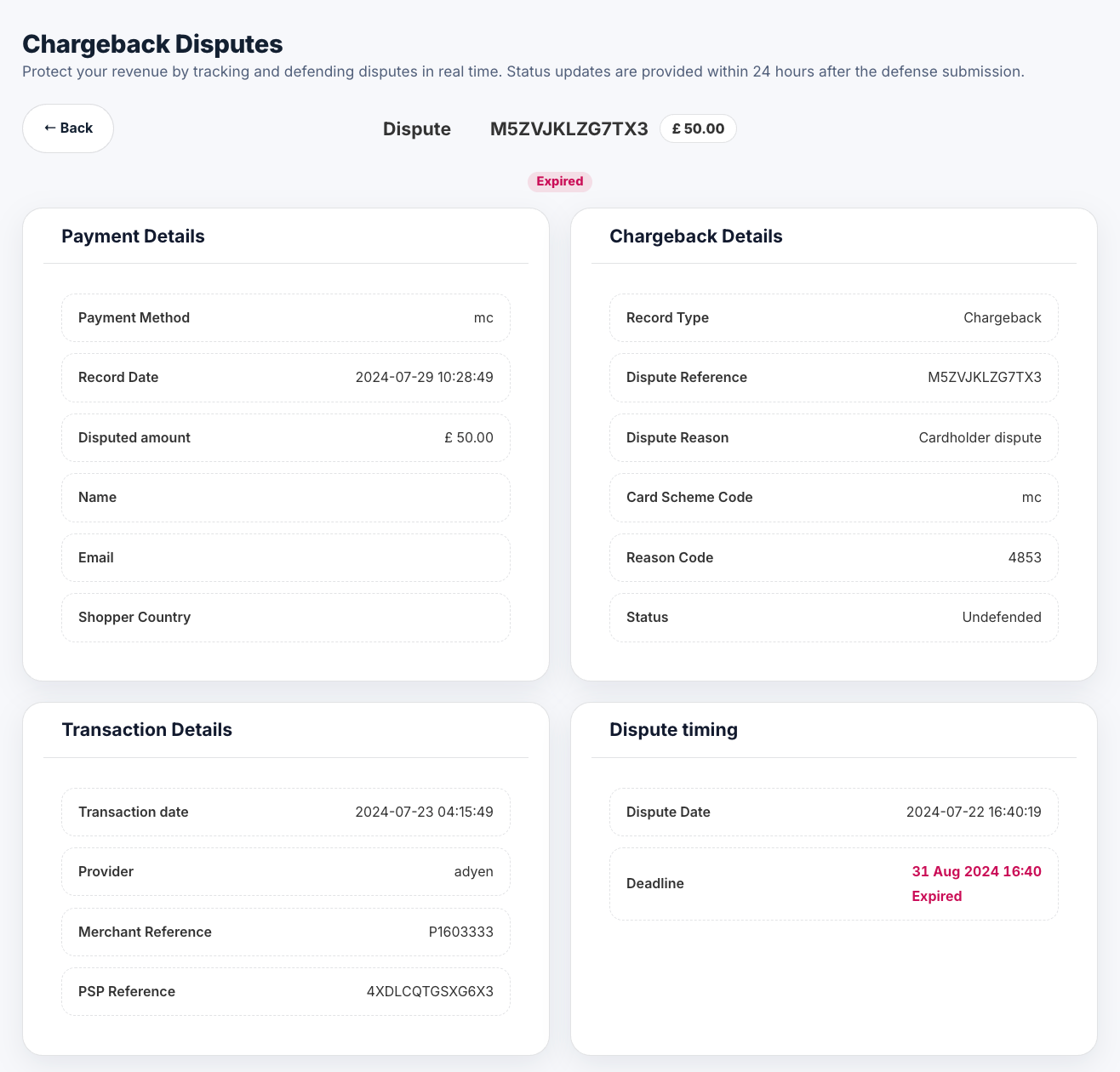
Clicking on a dispute opens the Dispute Details page. Here you can review:
The dispute reason provided by the card issuer
Payment and transaction details
The current dispute status
The deadline to respond
Defence suggestions to guide you
The current status is always shown clearly at the top of the page.
How to Submit a Dispute Defence
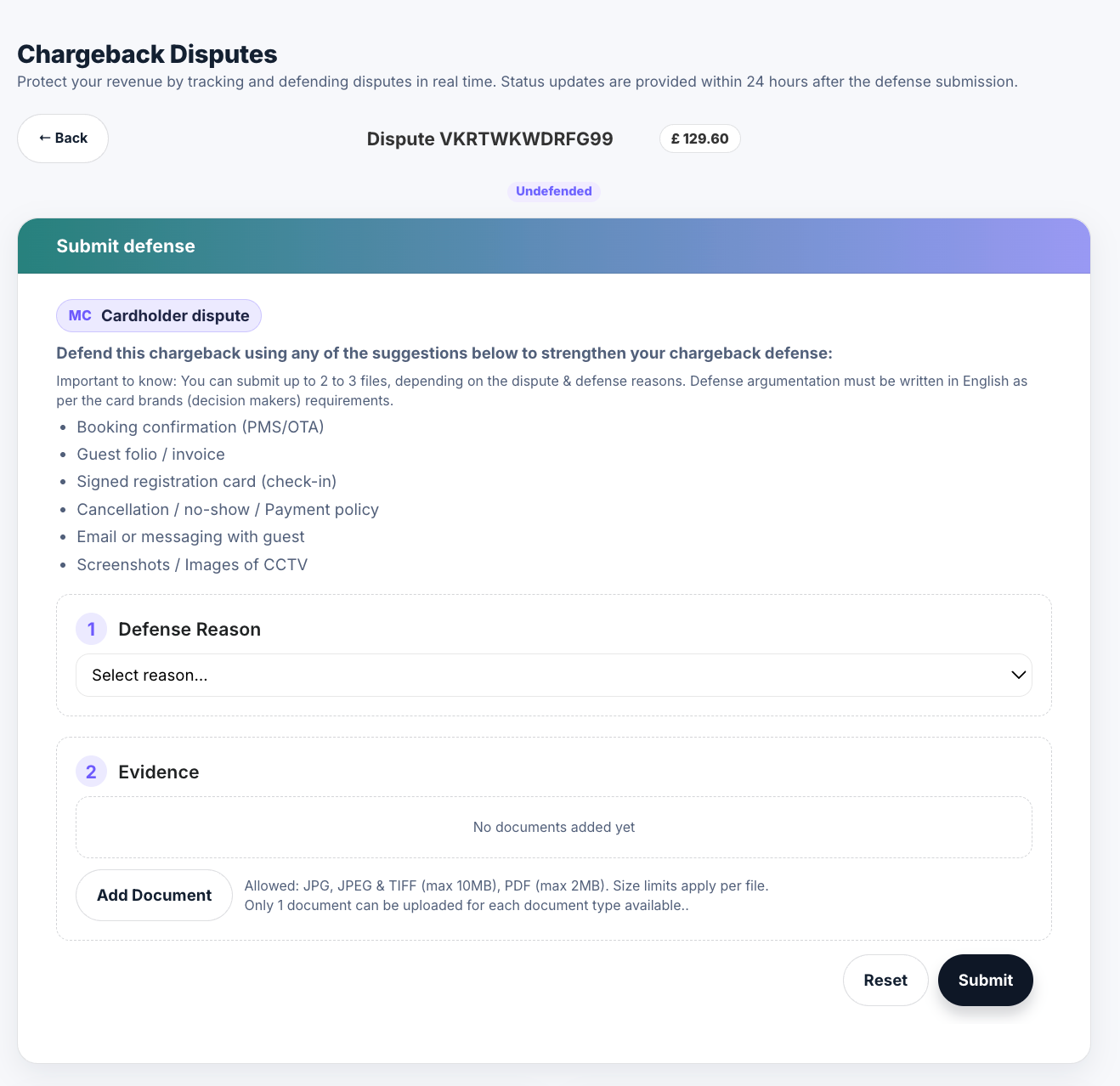
Follow these steps to defend a chargeback:
Open the dispute: From the main dashboard, click the arrow “Dispute Chargeback” to open the dispute details page.
Review the dispute details: Check the dispute information and the reason presented by the cardholder or issuer bank.
Review defence suggestions: Consult the defence suggestions displayed on the page to help strengthen your case.
Select a defence reason: In the Reason section, choose one of the available reasons for defending the dispute. The possible reasons to defend depend on the chargeback reason presented by the issuer bank.
Upload evidence: In the Evidence section:
Select the type of evidence you want to submit
Upload 1 file per evidence type
Ensure files meet the required format and size limits, otherwise they will not be accepted
Submit the defence: Once all desired evidence files are uploaded, click Submit to send your defence.
Important Rules to Know
Each defence reason allows only specific evidence types
Changing the defence reason will automatically remove previously uploaded files
After submission, it can take up to 24 hours for the status to update
Once a dispute is marked as Expired, it can no longer be defended
Summary
The Chargebacks & Disputes dashboard gives you:
Full visibility into all disputes
Clear deadlines and status tracking
The ability to defend disputes independently
Better control over revenue risks
If you have questions about a specific dispute or need help understanding the required evidence, contact our Support Team via the in-app chat.
Was this article helpful?
That’s Great!
Thank you for your feedback
Sorry! We couldn't be helpful
Thank you for your feedback
Feedback sent
We appreciate your effort and will try to fix the article