Add custom payment methods to match your business or accounting needs.
How to add a custom payment method
Navigate to Account Settings.
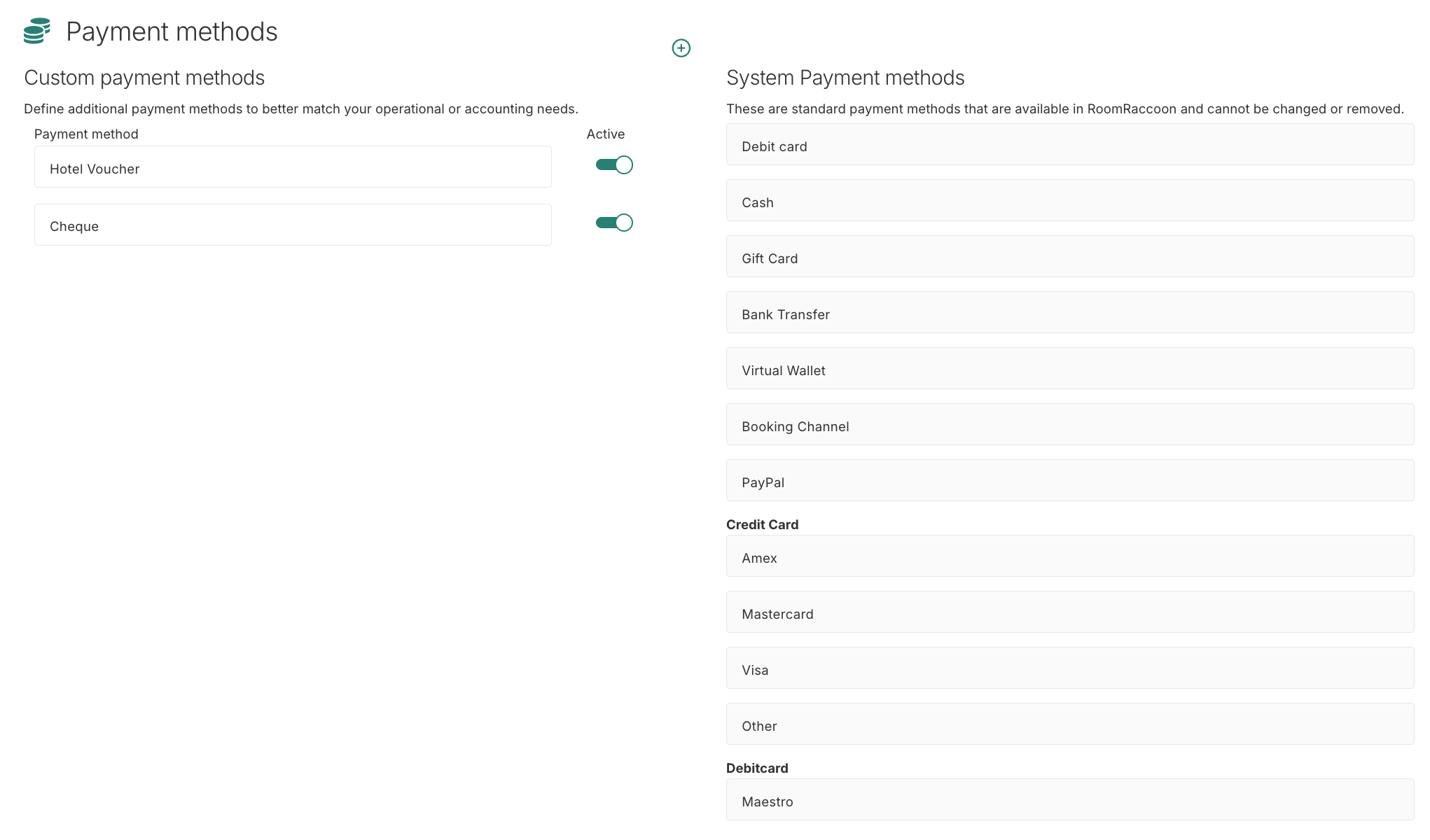
Scroll down to the Payment Methods section.
On the right-hand side, you will see the system payment methods. These are standard RoomRaccoon payment methods and cannot be edited or archived.
On the left-hand side, you can add and manage your custom payment methods. Any existing custom methods will also be displayed here.
To add a new payment method, click the + icon, enter the name of the payment method, and click Save at the top right hand side of the screen.
The new payment method will appear on the left-hand side as Active.
If you would like to activate or deactivate a custom payment method, you can do so using the Active toggle.
Good to know
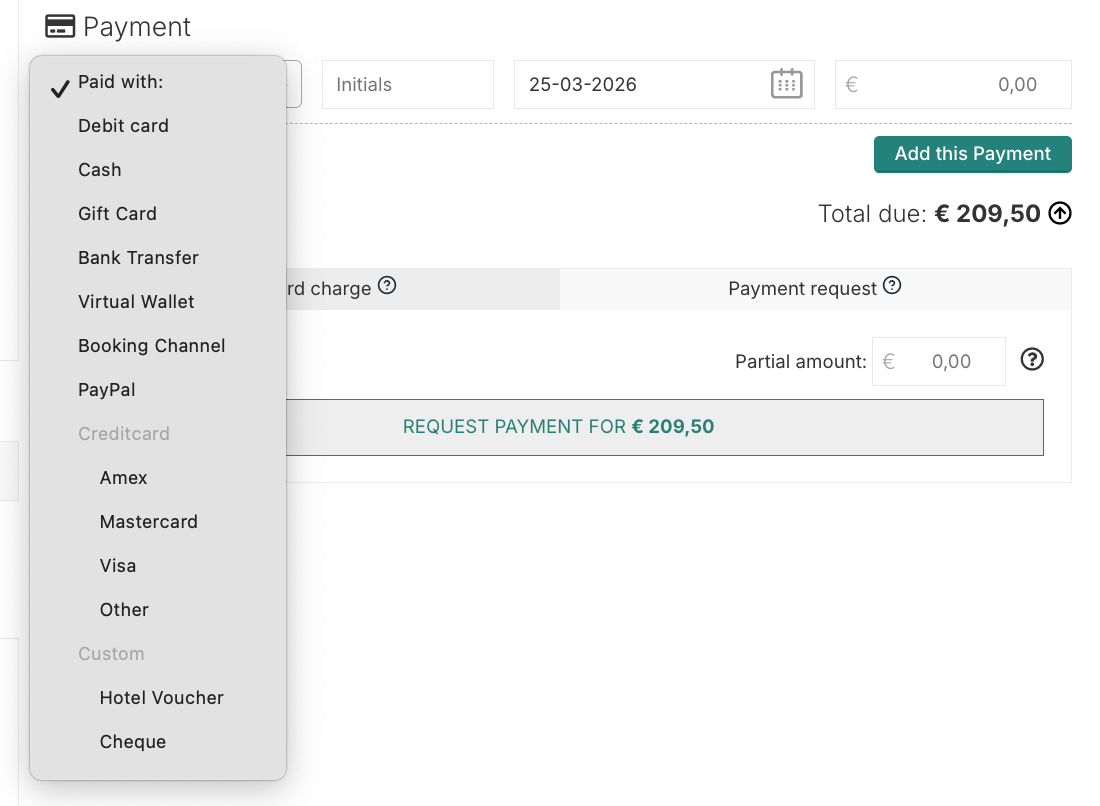
Custom payment methods will appear as an option in the “Paid with” dropdown when recording payments on reservations.
If you have an accounting integration, custom payment methods will also be available for connection.
Custom payment methods will appear in reports that include payment method information.
Was this article helpful?
That’s Great!
Thank you for your feedback
Sorry! We couldn't be helpful
Thank you for your feedback
Feedback sent
We appreciate your effort and will try to fix the article