To manage taxes correctly in RoomRaccoon, you need to:
Create your tax rules
Assign those taxes to the correct ledgers
This ensures your financial reports reflect your tax obligations accurately.
Step 1: Set up your tax rules
Go to Account Settings
Scroll to Tax Rules
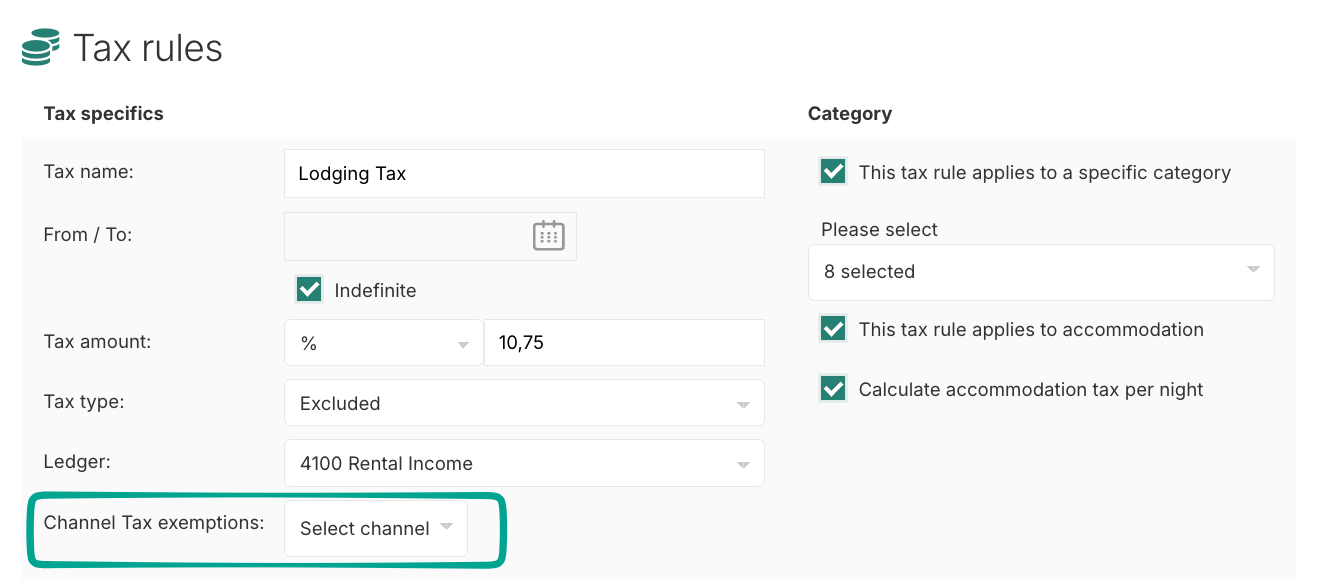
Create or edit a tax rule - For each tax (e.g. state tax, local tax, hotel tax):
Enter the tax name and percentage
Select the categories the tax applies to, such as:
Accommodation
Add-ons
Choose how the tax is calculated -Select whether the tax is calculated on:
Net amount, or
Gross amount
Manage OTA tax exemptions - You can control how taxes apply to specific channels:
Select which OTAs should be excluded from the tax rule
This allows flexibility depending on how each channel handles taxes
Step 2: Link taxes to ledgers
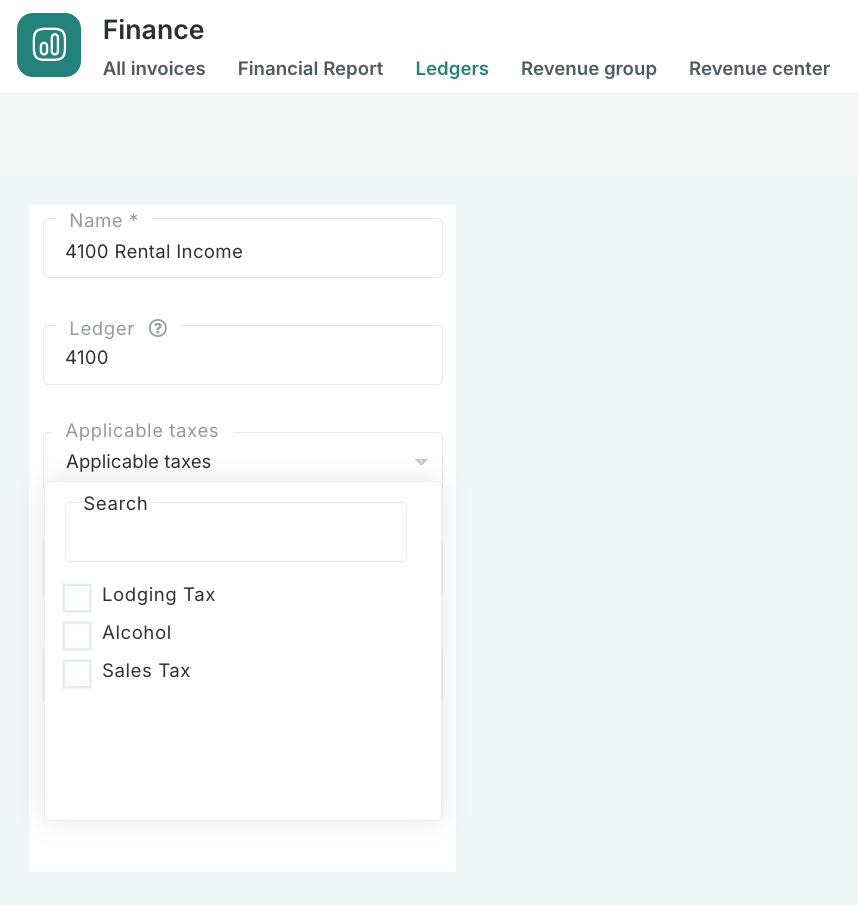
After creating your taxes, you must assign them to the correct ledgers.
Go to Finance
Open the Ledgers tab
Assign taxes to a ledger:
Select the relevant ledger (e.g. accommodation, food and beverage)
Click Applicable Taxes
Choose the taxes that apply
Click Save
Important: if an add-on is linked to a ledger:
Do not apply tax rules directly to the add-on
Always apply taxes through the ledger
This keeps your financial reporting consistent and accurate.
Result
Once your taxes and ledgers are configured:
Taxes are applied correctly across your reservations
Financial reports reflect accurate tax amounts
You maintain consistency across all revenue streams
Was this article helpful?
That’s Great!
Thank you for your feedback
Sorry! We couldn't be helpful
Thank you for your feedback
Feedback sent
We appreciate your effort and will try to fix the article