The Login History helps you monitor access to your RoomRaccoon account. It provides a detailed overview of all login attempts so you can quickly identify login issues or detect unusual activity.
You can use this log to see who logged in, when they logged in, and from which device or location.
You can find the Login History in the Account Security tab under Settings.
What information is shown in the Login History?
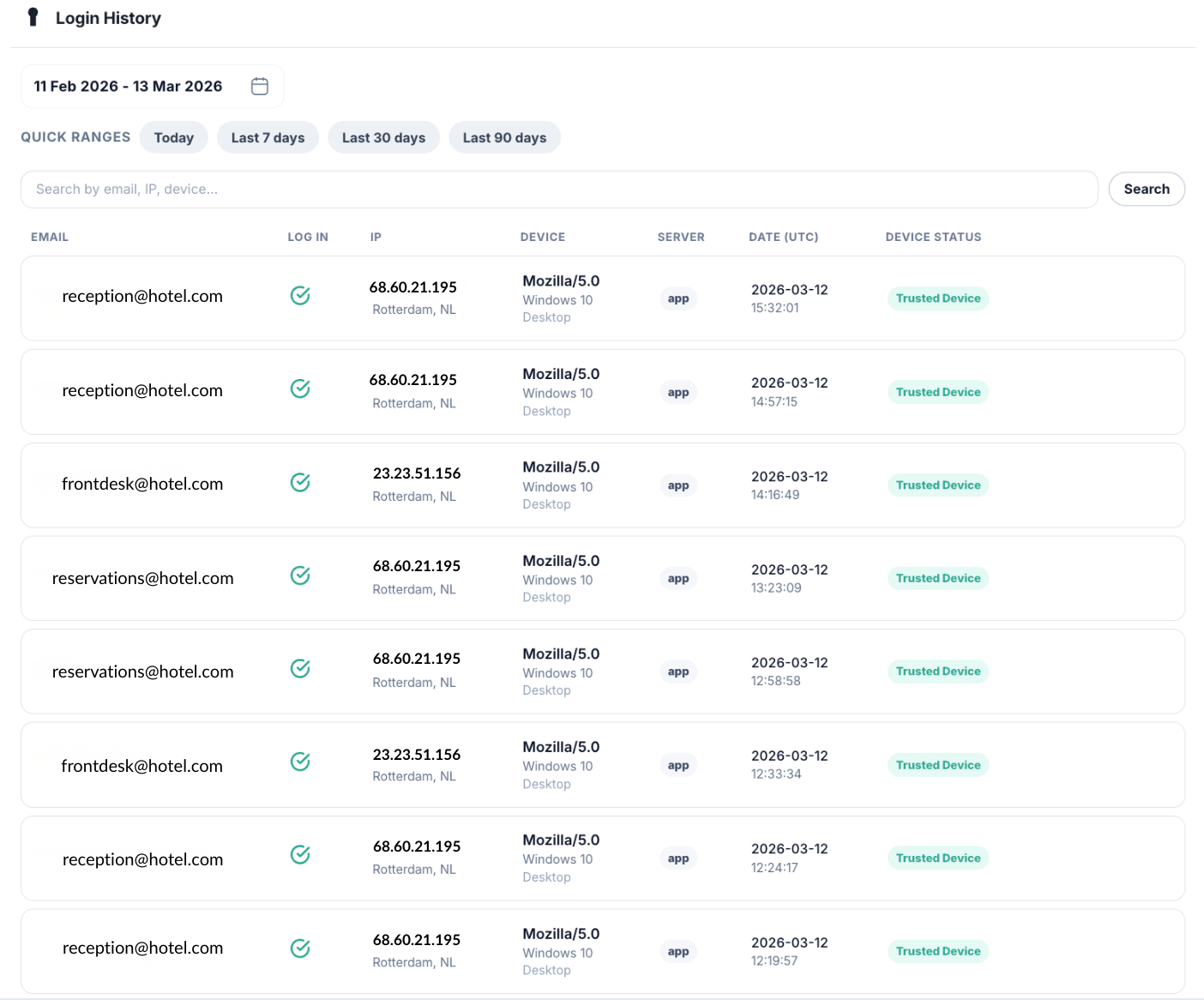
Each login attempt includes the following information:
E-mail - The email address of the user who attempted to log in.
IP Address & Location - The IP address used during the login attempt, including the detected location.
Device & Browser -Information about the device, browser, and operating system used to access the account.
Status - Shows whether the login attempt was successful or failed.
Authentication (Auth) - Shows how the user authenticated during login. This may include:
Trusted Device – A device that has previously been verified.
2FA (Two-Factor Authentication) – A verification code used during login.
Passkey – A secure login method that allows users to authenticate using their device (such as biometrics or a device PIN).
Server - Shows the environment the login was made to.
Date (UTC) - The exact date and time of the login attempt.
Device Status - Indicates whether the device is marked as a Trusted Device.
Troubleshooting login issues
The Login History can help you understand why a login attempt may have failed. Common reasons include:
Incorrect password
Incorrect or expired 2FA code
Issues with passkey authentication
Login attempt from an unrecognised device
Browser or device issues
Reviewing the log can help you quickly identify and resolve these issues.
Monitoring account security
Regularly reviewing your Login History helps you keep your account secure. If you notice login attempts from unknown locations, devices, or IP addresses, we recommend that you:
Change your password immediately
Review which devices are marked as trusted
Ensure 2FA or passkey authentication is enabled for your account
Was this article helpful?
That’s Great!
Thank you for your feedback
Sorry! We couldn't be helpful
Thank you for your feedback
Feedback sent
We appreciate your effort and will try to fix the article