Agora POS is a point-of-sale system designed for hospitality and retail businesses such as restaurants, bars, cafés, and shops. It allows you to process sales, manage orders, handle billing, track inventory, and generate reports from one system.
When connected to RoomRaccoon, the integration allows you to:
Post POS invoices directly to a guest room
Cancel invoices from Agora POS and reflect them in RoomRaccoon
Send a full daily revenue push to RoomRaccoon after End of Day (EOD) is completed in Agora POS
How the Agora POS Integration Works
Once connected:
Charges made in Agora POS can be posted to a guest’s room in RoomRaccoon
If a POS invoice is cancelled, the cancellation is reflected in RoomRaccoon
Revenue is synced daily through a Full Revenue Push after the POS End of Day
This ensures that your room charges and POS revenue are aligned and automatically updated.
How to Request the Agora POS Connection
If you would like to connect Agora POS to RoomRaccoon:
Request the Agora POS integration through the Marketplace.
Our team will coordinate the technical setup with Agora POS.
Once confirmed, you will be asked to test the connection.
How to Test the Integration
After setup confirmation, follow these steps to test:
Post a test charge to a guest room from Agora POS.
Cancel that invoice in Agora POS.
Expected result:
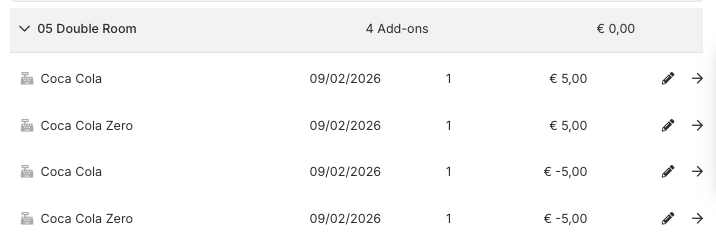
The original charge appears in RoomRaccoon.
The cancellation appears as a matching negative entry.
Both entries use the correct ledgers.
This confirms that the integration and ledger mapping are working correctly.
Ledger Setup
To ensure revenue is posted correctly, POS revenue groups must be mapped to the correct ledgers in RoomRaccoon.
This ensures:
Revenue is assigned to the correct turnover groups
VAT percentages are applied correctly
Reports reflect accurate financial data
Your ledger setup will be configured during integration. Once completed, POS items will automatically populate the correct ledger accounts.
Full Revenue Push
The Full Revenue Push is a daily sync from Agora POS to RoomRaccoon.
It occurs:
Once per day
After the End of Day (EOD) process is completed in Agora POS
Where to View POS Revenue in RoomRaccoon
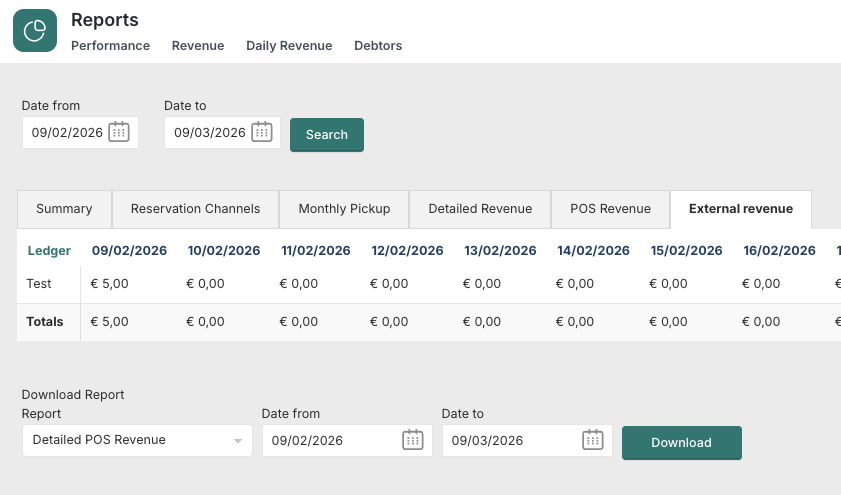
To review the revenue data:
Go to Reports Module → Revenue → External Revenue
Open Key Metrics
Select Detailed POS Revenue
Choose your reporting period
Click Download for a detailed breakdown
This report gives you visibility into all POS revenue received through the integration.
Was this article helpful?
That’s Great!
Thank you for your feedback
Sorry! We couldn't be helpful
Thank you for your feedback
Feedback sent
We appreciate your effort and will try to fix the article