RoomRaccoon automatically provides each account with a default invoice series that matches the current fiscal year.
Example: FR 2023/10
FR → Invoice-Receipt
Series → 2023
Sequential Number → 10
However, in some cases you may need to create additional fiscal series, especially if:
You manage multiple RoomRaccoon accounts under the same company and tax ID (NIPC).
You want to avoid duplicate invoice numbers when exporting and uploading your SAF-T file.
To prevent issues, these new series must be created before the end of the year and assigned to the new fiscal year so that all documents issued from January 1st are correctly linked.
How to Add a New Fiscal Series
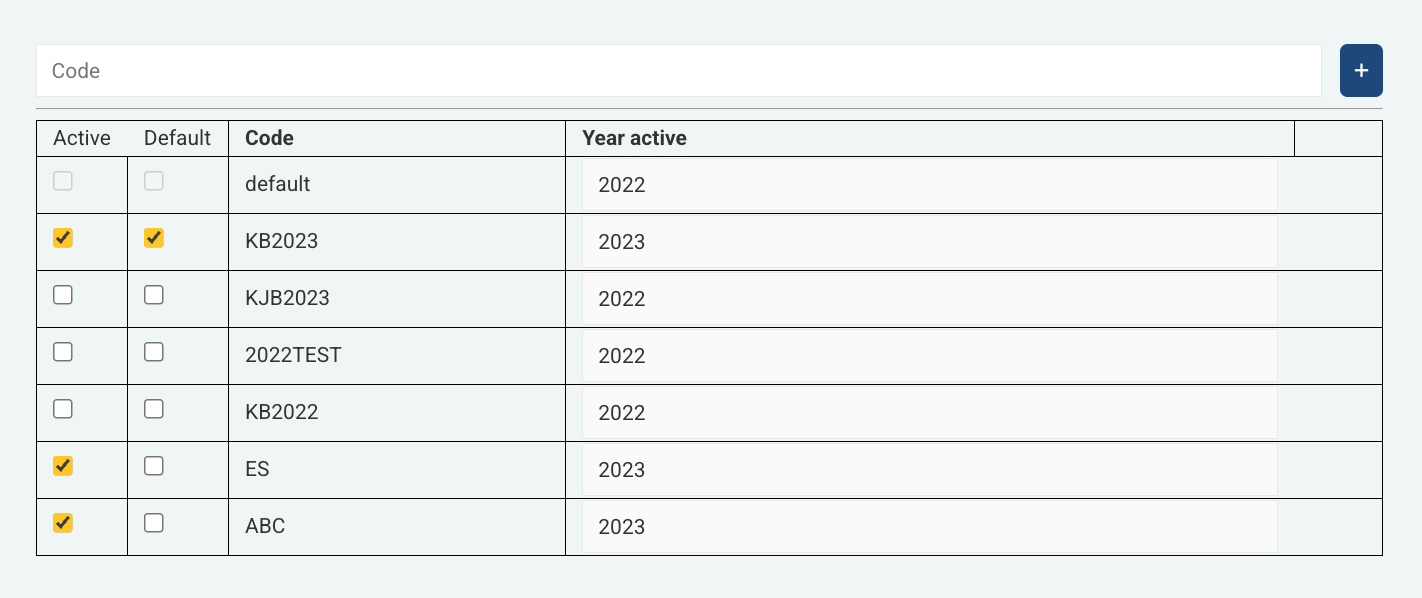
Log in to your RoomRaccoon account.
Go to Settings → Account (right at the bottom).
Click Manage Invoice Series. You’ll be taken to the Invoice Series Management page.
Add your new series (for example, 2024RR) and click the + button.
Find the new series in the list below and tick the Active box.
Enter the fiscal year (for example, 2024) in the box next to it.
Click Save Year to confirm.
Before the End of the Year
Once you’ve issued your final document for the current year:
Change the Standard tick to the new fiscal series (so all invoices from January 1st use it).
Untick the Active box for the previous year’s series (e.g., 2023).
This ensures your invoices continue seamlessly into the new fiscal year without numbering conflicts.
Good to Know
Every invoice series must be linked to the Validation Code provided by your local Tax Authority to generate the ATCUD on invoices. To learn how to set up your ATCUD in RoomRaccoon, check out our article: How to Set Up ATCUD in RoomRaccoon.
Was this article helpful?
That’s Great!
Thank you for your feedback
Sorry! We couldn't be helpful
Thank you for your feedback
Feedback sent
We appreciate your effort and will try to fix the article