The Subscription Plan page in RoomRaccoon gives you full visibility and control over your plan, payment details, invoices, and upcoming renewals.
This is your central space to:
View your current subscription plan
Upgrade or change plans
Manage payment methods
Review billing details
Preview your next invoice
Access past invoices
How to Access Your Subscription Page
Log in to your RoomRaccoon account (as a manager user or above).
Go to your Account Settings > Subscription Plan section.
Please note: for consolidated accounts, the subscription plan page is available in the main account only.
What You’ll Find on This Page
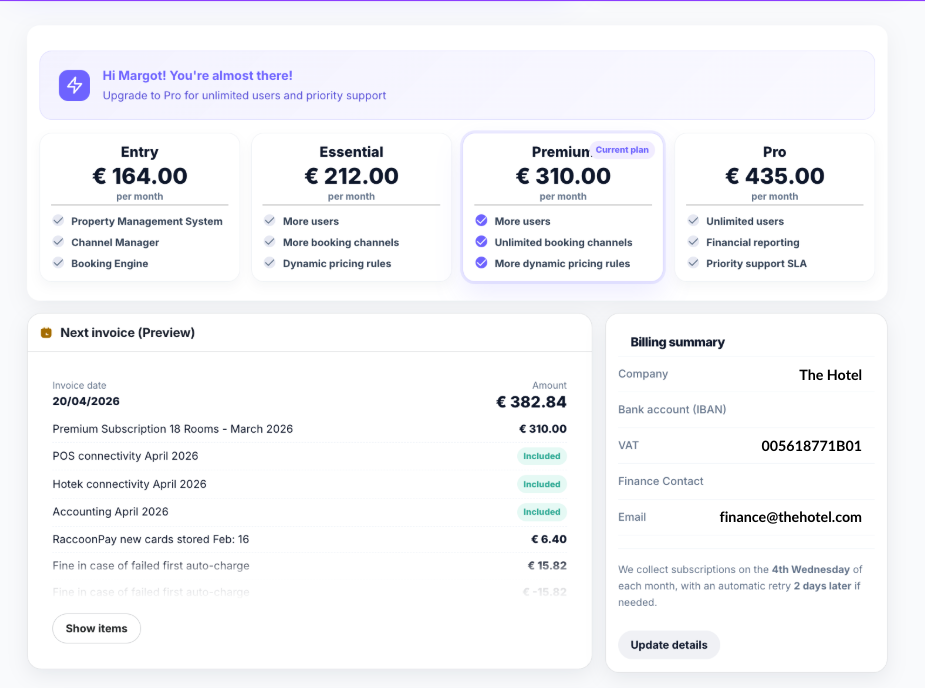
1. Your Subscription Overview
At the top of the page, you’ll see:
Your partner duration (how long you’ve been with RoomRaccoon)
Your current plan
Your next renewal date
Your monthly subscription amount
A button to Manage subscription
This gives you a quick snapshot of your relationship and upcoming billing.
2. Payment Method
Depending on which region you are in, this section will show what payment method is on file:
Credit card
The card currently on file
Expiry date
Subscription model (e.g., monthly)
Direct debit
RoomRaccoon deducts your subscription fee:
First from your RaccoonPay balance, if available (excluding South Africa)
If insufficient, from your registered payment method
In case of a credit card; If your card is expiring soon, you’ll see a notification.
To update your card:
Click Update card
Enter your new card details
Save changes
Keeping your payment method up to date prevents service interruptions.
3. Your Current Plan & Upgrade Options
You’ll see your current plan clearly marked, for example:
Entry
Essential
Premium
Pro
Each plan displays:
Monthly price
Included features
User limits
Channel limits
Reporting access
Support level
If you're on a lower-tier plan, you’ll see upgrade options displayed next to your current plan.
To upgrade:
Click on the plan you’d like to switch to.
Follow the prompts to confirm the change.
Upgrades take effect according to your billing cycle
4. Next Invoice (Preview)
The Next invoice preview shows:
Upcoming invoice date
Amount due
This helps you prepare for upcoming charges.
5. Billing Summary
In this section, you can view:
Company name
Bank account (IBAN) or credit card
VAT number
Finance contact
Billing email
To update billing details:
Click Update details
Edit the required fields
Save your changes
Make sure your VAT and billing information are correct to avoid invoice errors.
6. All Invoices
Here you can;
Search invoices
Filter by status (paid or due)
View and download past invoices
This is useful for accounting and reporting purposes.
7. Conference Rooms
At the bottom of the page, you will find an overview of the (active) conference rooms in your subscription.
Was this article helpful?
That’s Great!
Thank you for your feedback
Sorry! We couldn't be helpful
Thank you for your feedback
Feedback sent
We appreciate your effort and will try to fix the article