The LTS GuestPass is a temporary digital hotel card which grants guests access around the property and its facilities.
When the LTS GuestPass integration is active, RoomRaccoon automatically creates and sends guest passes to LTS, making the check-in process smoother for both you and your guests.
This article explains how guest passes are created, how to manually create them if needed, and what to do if there’s an error.
How Guest Passes Are Created
Once the integration is enabled:
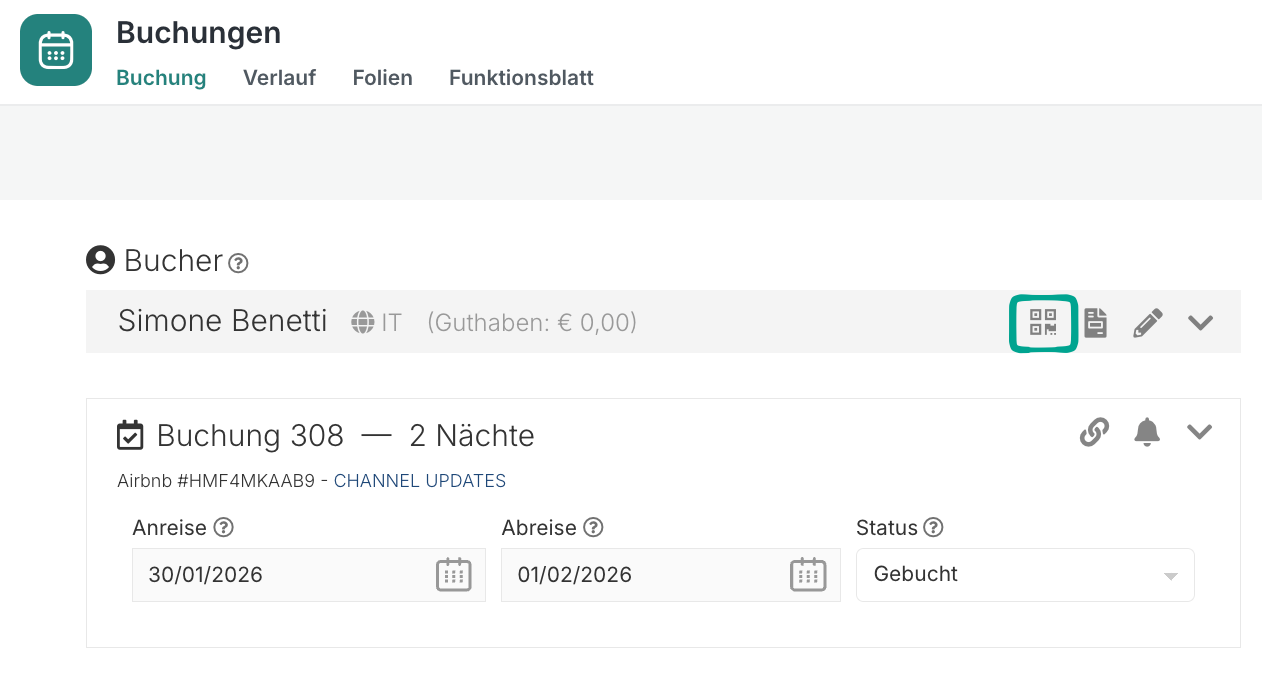
A GuestPass icon appears next to each booker in the reservation
Guest passes are created automatically when the reservation status changes to Checked-in
The system sends the guest pass directly to LTS
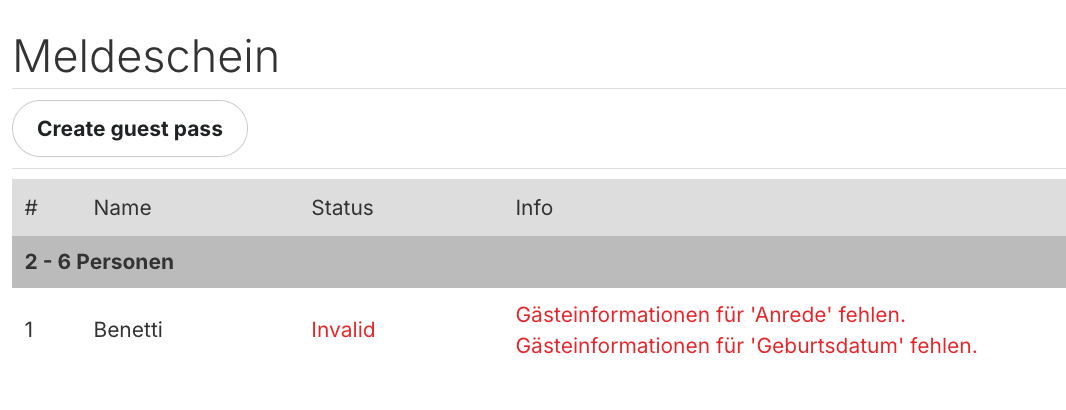
If the pass cannot be created, you’ll see an error message explaining why.
When Do I Need to Create a Guest Pass Manually?
Manual creation is only needed if:
Required guest information is missing at check-in
The automatic creation failed due to incomplete data
Once the missing details are added, you can create the guest pass manually.
How to Manually Create a Guest Pass
Open the reservation.
Make sure all mandatory guest information is filled in.
Click the GuestPass icon next to the booker’s name.
Click Create pass.
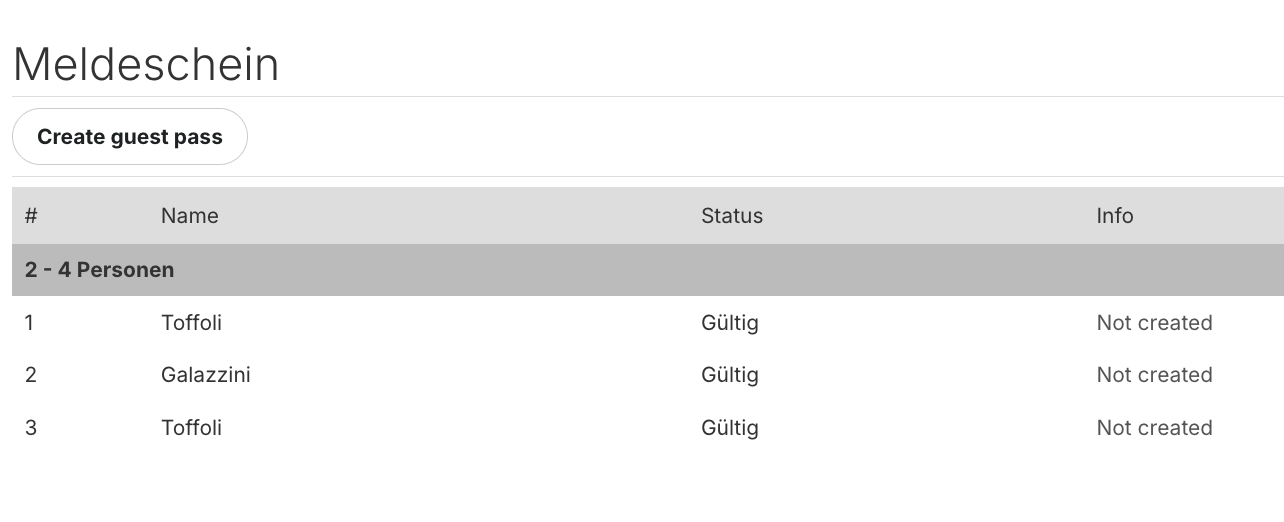
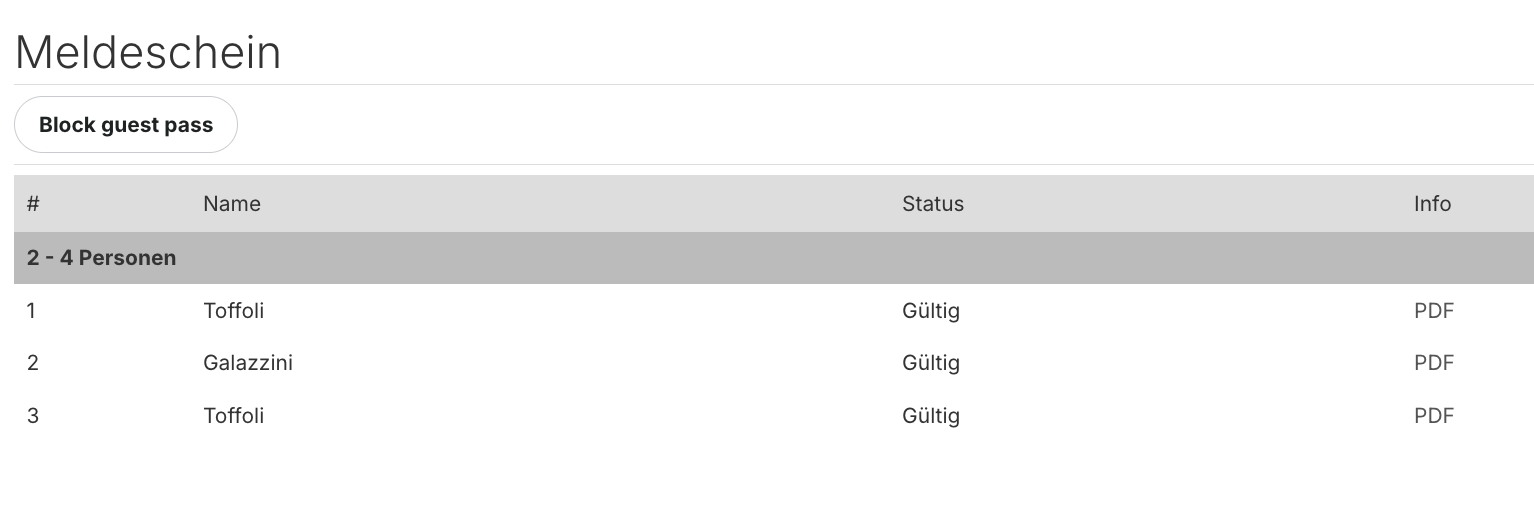
If successful:
A PDF button appears
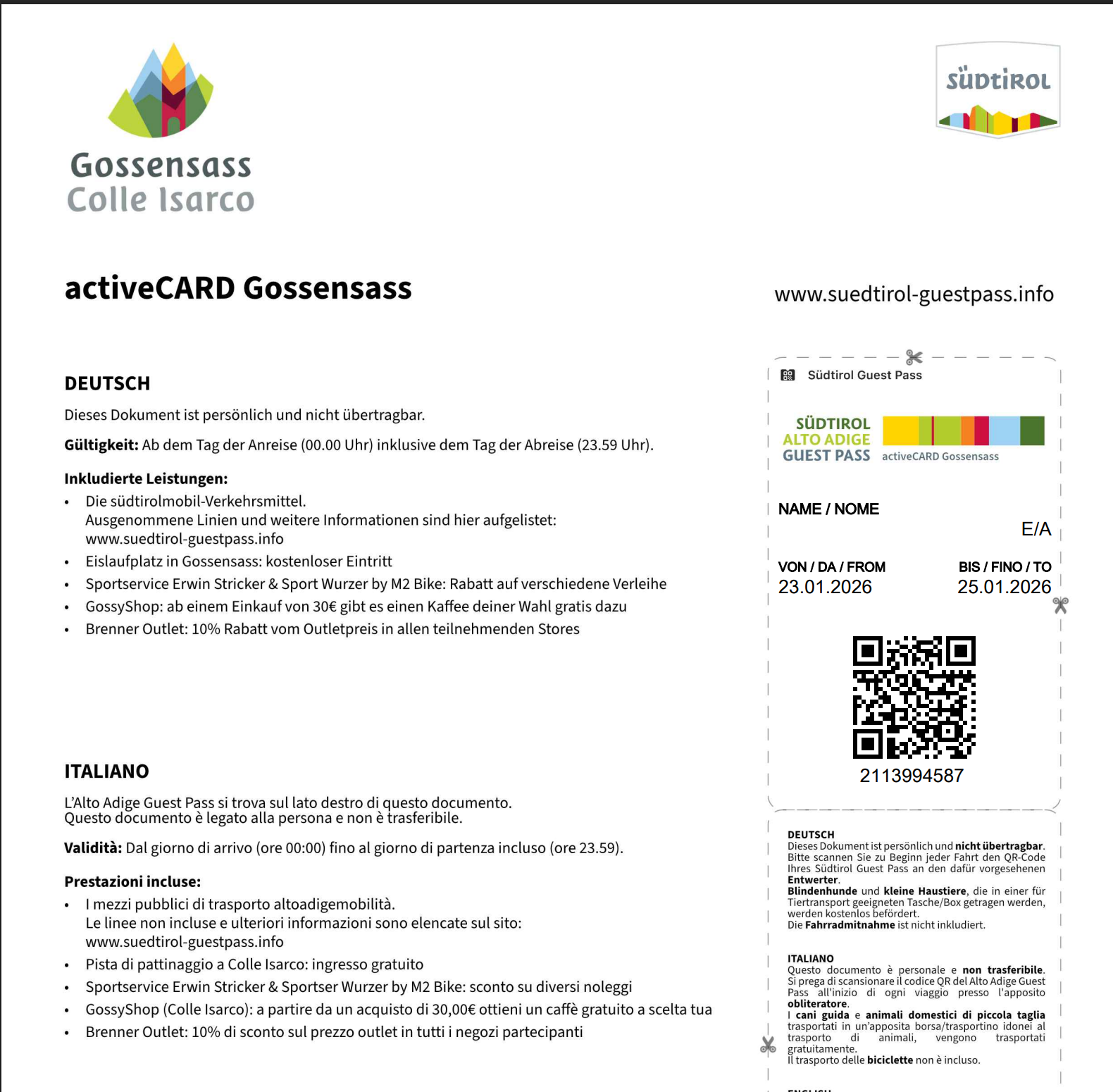
Click it to view or download the guest pass
If there’s an issue, an error message will appear explaining what needs to be corrected.
What Happens After the Guest Pass Is Created?
The guest pass is automatically sent to the guest via LTS
The pass is delivered to the guest’s email address
Good to Know
If no email address is stored for the guest, the pass cannot be sent
Always check that mandatory guest details are complete before check-in
Error messages clearly indicate what information is missing or incorrect
Was this article helpful?
That’s Great!
Thank you for your feedback
Sorry! We couldn't be helpful
Thank you for your feedback
Feedback sent
We appreciate your effort and will try to fix the article