When updating your accounting software to reflect a new VAT percentage, it’s important to update your ledger mapping in RoomRaccoon. This ensures the correct VAT is posted to the correct ledger in your accounting system.
Follow the steps below to complete the setup.
Step 1: Update Your Ledger Mapping
Go to Finance (Bookkeeping) in RoomRaccoon.
Click on Ledgers (Grootboekrekeningen).
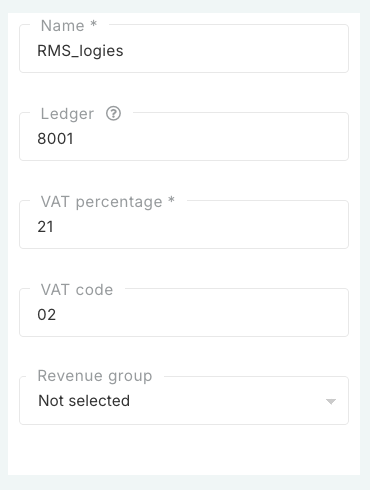
Locate the ledger called “RMS_logies”.
Copy the name: RMS_logies.
Click the Pencil icon next to it.
Change the name (e.g. “Old accommodation / Archive”) and click Save.
On the top right, click New Ledger (Nieuwe Grootboekrekening).
Paste the name you copied: RMS_logies.
Add/update the ledger details according to what your accounting software requires (either a new ledger or the original code may be used based on your accounting setup).
Update the VAT percentage to XX %.
Update the VAT code (e.g. VH, Hoog, or 03) based on your accounting software.
Click Save.
Step 2: Update Accounting Settings
The accounting settings update may differ depending on your accounting software provider.
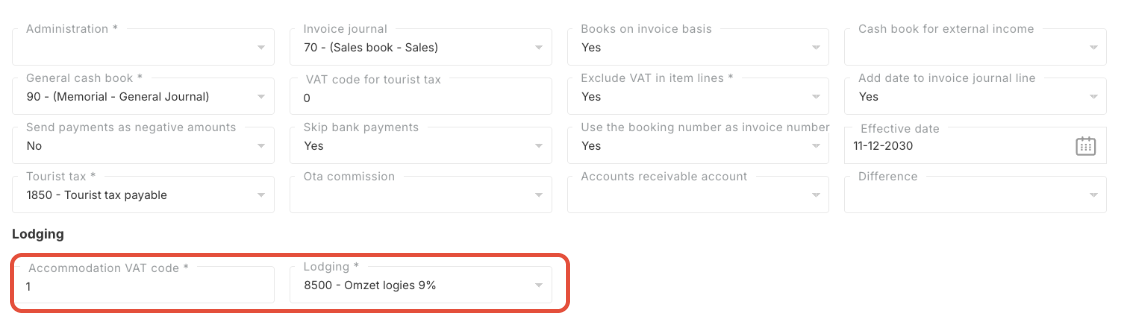
Go to Accounting Settings (Boekhoudinstellingen).
Under Logies, update the ledger to your new accommodation ledger, or leave unchanged if you are keeping the old ledger but updating the VAT only.
If you use Exact or Twinfield, update the VAT code for XX %, according to your accounting system’s requirements.
Scroll to the bottom right of the page and click Save.
You’re Done! Your ledger setup now correctly reflects the new VAT percentage. RoomRaccoon will automatically post revenue to the updated ledger with the correct VAT configuration.
Was this article helpful?
That’s Great!
Thank you for your feedback
Sorry! We couldn't be helpful
Thank you for your feedback
Feedback sent
We appreciate your effort and will try to fix the article